Multi-boot Manjaro and Windows
…on Separate Disks
Firstly, this guide is intended for multi-booting with each OS on a separate disk.
If you have a laptop with only one disk, or If you wish to install an OS on it’s own partition on the same disk, this guide is not for you (but read on regardless, if interested).
Secondly, this guide assumes each OS will be installed using UEFI and not UEFI’s CSM or Legacy mode. This guide does not support the traditional BIOS boot method. Additionally, all disks must use the GPT partitioning scheme.
Knowledge and some understanding of these terminologies is assumed. Without that, you will have additional reading to undertake before setting up a multi-boot system. To that end, an Internet search can be your friend; and, this will get you started:
When creating a multi-boot scenario, each OS needs to be protected from the affects of installing another OS (no matter which is already installed). It is therefore recommended to first disconnect the disk containing an existing OS before installing a second; or a third.
The General Guide
First, disconnect any previous OS disk(s). Install the new OS (in UEFI mode) to a new disk, and when fully functional, reconnect the original OS disk. Set the Linux OS first in boot order, solve any temporary Grub issues; and install rEFInd (optional) for good measure.
STEP BY STEP
Note:- This procedure makes no assumption of which OS (Linux/Windows) is installed first.
- Shutdown, turn off, and unplug your computer.
- Disconnect any existing OS disk(s).
- Plug in the power again.
- Boot with the respective OS Installer (DVD/USB).
- Install the new OS to the new disk and configure the OS.
- Shutdown, turn off, and unplug your computer.
- Reconnect the previous OS disk.
- Plug in the power again.
- Boot to your BIOS and select Manjaro as the first boot option.
- Reboot, and enjoy.
Important Caveats
SECURE BOOT
Manjaro does not support a Secure Boot configuration. As every BIOS is different, the procedure to disable Secure Boot may also be different; consult your BIOS documentation for any required information.
If Secure Boot is enabled due to a Microsoft requirement (Windows 11), a workaround may need to be employed to allow Windows to boot without Secure Boot.
Secure Boot should be disabled before installing Manjaro.
SET MANJARO FIRST IN BOOT ORDER
Boot straight to BIOS settings and make sure the drive with Linux/Grub/rEFInd (your main EFI) is selected to boot first. Then reboot into Grub (or rEFInd).
WINDOWS FAST STARTUP
By default, Windows 10/11 use a hibernation variant that Microsoft calls Fast Startup – Windows doesn’t actually shut down, but instead wakes from hibernation giving the illusion of a faster startup; this frequently causes havoc with boot and NTFS mounting functionality within Linux.
Fast Startup must be disabled in a multi-boot scenario.
Disable Fast Startup using the following command from an administrative command prompt in Windows:
powercfg /h off
FAST BOOT
Fast Boot is a BIOS option which, if present, allows to skip certain self-tests during pre-boot (before handoff to a boot loader). As every BIOS is different, Fast Boot settings may exist in varying locations, or may not exist at all.
If Fast Boot is enabled, it is generally recommended (but not compulsory) to disable it in your BIOS when using Linux.
UTC VS. LOCAL TIME
Linux defaults to using UTC time rather than Local time; Windows uses Local time.
This causes particular annoyance when multi-booting, as each OS defaults to a different time standard and sets the BIOS clock accordingly on each boot. No matter how many times you might manually set the correct time (in either OS), it always resets after a reboot.
Methods exist to resolve this in Linux, however this author has found those to be unreliable. This issue only exists due to a Windows design flaw, or oversight; so, let Windows in turn assume the burden of repair. Linux already handles UTC with superior grace.
The most elegant solution is to create a Windows registry file with the following content;
Let’s call it RealTimeIsUniversal.reg:
Windows Registry Editor Version 5.00

[HKEY_LOCAL_MACHINE\SYSTEM\CurrentControlSet\Control\TimeZoneInformation]
"RealTimeIsUniversal"=dword:00000001
After merging this registry modification, Windows will be ready to set the BIOS time to UTC after the next reboot. Windows time will need to be manually set once after the reboot, but from that point forward, both Windows and Linux will use the UTC time standard.
Note that this modification will not affect your date/time display in Windows. Configure it as you would normally.
WINDOWS MISSING FROM GRUB MENU
Windows may not (yet) appear in the GRUB menu;- this might be expected with a new multi-boot configuration. 
The package os-prober is responsible for detecting other Operating Systems during boot. If you wish to rely on Grub to manage booting each OS then it is imperative that os-prober is enabled.
 OS-Prober is now enabled by default in Manjaro1.
→ 1. Official Manjaro editions.
OS-Prober (How to enable)
Verify that os-prober is installed; install it, if it isn’t:
# Verify os-prober is installed
pacman -Qi os-prober
# Install os-prober (if needed)
sudo pacman -S os-prober
In order for os-prober to detect another available OS during boot, it needs to be enabled in /etc/default/grub, which right now, it probably isn’t.
Check os-prober status;
# Check the status of os-prober:
cat /etc/default/grub | grep -i 'OS_PROBER'
# The output will include this line:
GRUB_DISABLE_OS_PROBER=false
If the line is commented (#), uncomment it:
# Edit `/etc/default/grub`:
sudo nano /etc/default/grub

# The line should look exactly like:
GRUB_DISABLE_OS_PROBER=false

# Update GRUB:
sudo update-grub
On next reboot, os-prober should function as expected, and Windows (or any other properly installed OS) should be automatically detected and listed in the GRUB menu.
OS-Prober (A security perspective):
The following information remains only for interest sake:
Due to a security recommendation (since GRUB v2.06) os-prober is/was disabled by default on Arch Linux based systems; in some cases, removed completely.
Is this something to be concerned about? This author thinks not, especially not, if you trust those around you who might sit in your chair.
While there is/was a valid security reason for this decision, it is incredibly inconvenient to not have os-prober enabled if you’re depending on Grub for multi-booting.
rEFInd UEFI Boot Manager
The rEFInd UEFI Boot Manager is a versatile and more manageable solution to multi-booting with several Linux flavours in the mix.
Having each OS on a separate disk (with its own $ESP) is an ideal scenario for multi-booting.
rEFInd assumes the role of the initial boot loader, which in turn effectively chain-loads other UEFI boot loaders, including the GRUB efi-stub, the Windows boot loader (or even MacOS and BSD).
This allows one to leave each GRUB untouched and managed by it’s respective OS – this means less maintenance (no juggling settings to enable a successful boot) – plus, the added convenience of being able to bypass any installed GRUB and boot the respective kernel-stub directly.
This is exceptionally handy if GRUB has failed to boot, as you can still boot into Manjaro and repair it in relative comfort.
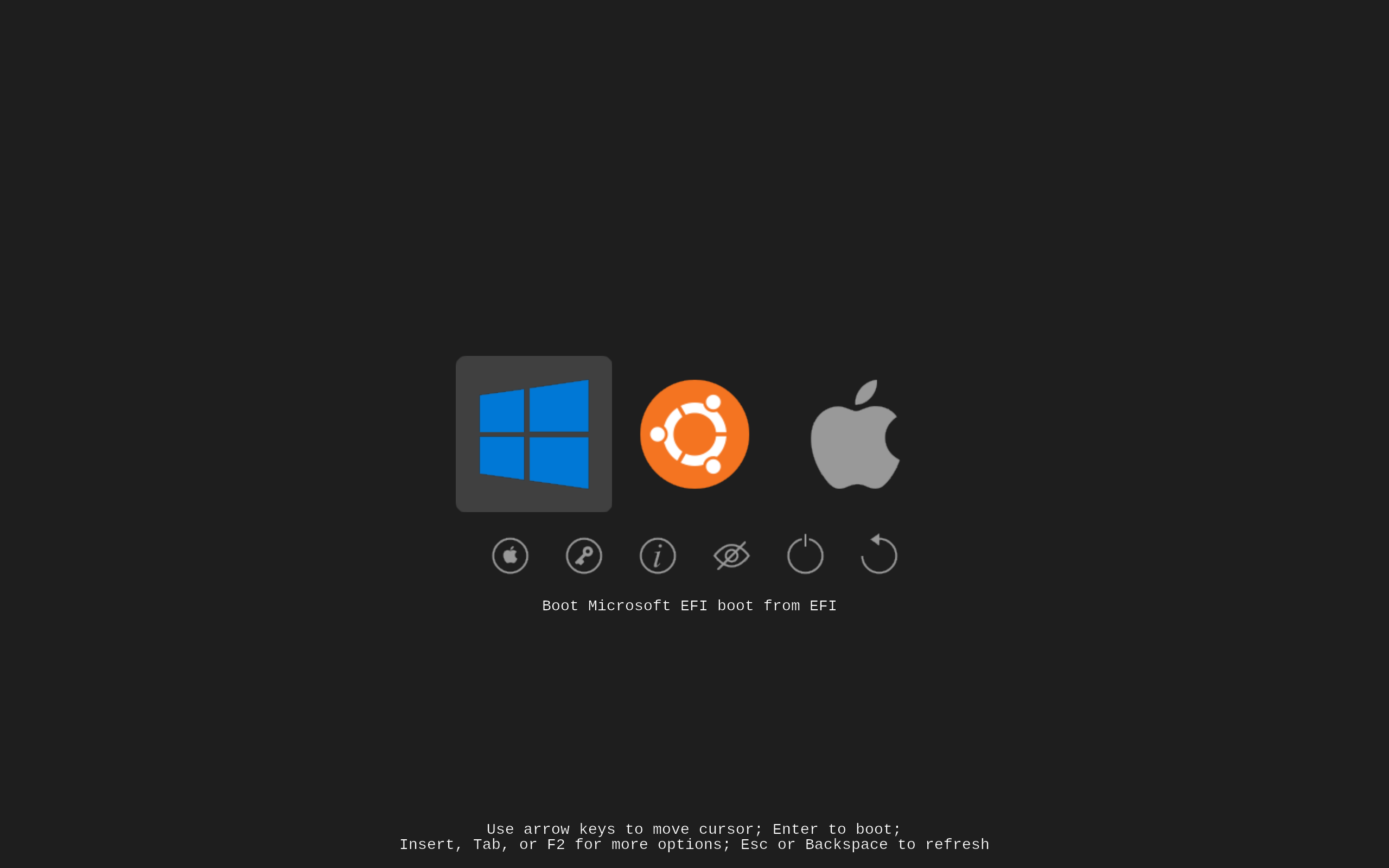
Installing rEFInd on a Manjaro/Windows multiboot system should give these boot choices by default (the naming may differ, but this gives the general idea):
- Windows
- Manjaro (GRUB efi-stub)
- Manjaro (kernel-stub)
The easiest way to see rEFInd in action is to install it (available from the official Manjaro repos):
Setting up refind is quite easy;
1. Install the refind package so that it’s available to Manjaro.
sudo pacman -S refind
2. Use refind’s own tool to install it to the $ESP.
sudo refind-install
rEFInd will be copied to it’s own folder on the Manjaro $ESP; the directory layout will be similar to:
EFI
├─ BOOT
├─ Manjaro
└─ refind
See also: The rEFInd Boot Manager: Methods of Booting Linux.
BOOT PRIORITY ‘HIJACKING’
Some Linux distributions (such as Debian) cause the boot priority to be reset after every update causing a “boot coup”.
If you are multi-booting with other Linux flavours in the mix, it might be beneficial to move the rEFInd boot files to the default/fallback location $ESP /EFI/BOOT to ensure it isn’t affected.
rEFInd provides a way to do this.
1. Identify your disk device node and partition number of your $ESP
lsblk -b
Look for the ESP on the same disk that contains Manjaro.
2. Move rEFInd files to the fallback location (/EFI/BOOT)
- Note the syntax differences between disk types
For SATA/HDD:
sudo refind-install --usedefault /dev/sdXY
Substitute X and Y for your $ESP:
Xis the disk nodeYis the partition number
For NVME:
sudo refind-install --usedefault /dev/nvmeXnYpZ
Substitute X, Y and Z for your $ESP:
Xis the NVMe controllerYis the disk nodeZis the partition number
3. Reboot
See also:
CHANGE THE KERNEL REFIND USES
Manjaro Linux allows multiple kernels to be installed.
rEFInd uses the kernel-stub of one of these to allow booting the kernel directly, and therefore bypassing GRUB.
You may wish to choose the kernel that rEFInd uses. The parameters for this are stored in /boot/refind_linux.conf but there is an easier way; indeed… “there’s an app for that”:
Manjaro Refind Installer
sudo pacman -S manjaro-refind-installer
Despite the name manjaro-refind-installer has very little to do with actually installing rEFInd, but you can use it to easily select the preferred kernel that rEFInd will use.
REFIND THEMES:
rEFInd is a graphical boot manager and allows customising with many themes available from Github sites and other locations.
Some might find the default rEFInd theme to be a little lacklustre; you can change that with custom themes…
A quick internet search should reveal many rEFInd themes; the better ones might take some special Search-fu to find; here are just a few:
Plus, there are plenty of GitHub repositories with rEFInd themes
And one of my personal favourites:
Brad's Refind Theme
Brad’s Refind Theme - A clean, minimal dark theme (.svg)
Good hunting!
Contributors:
Last Updated: 2025-12-01