Ventoy
A New Bootable USB Solution
Boot with a Ventoy USB and ISO files are automatically listed in the Ventoy menu.
Any ISO present can then be launched and booted directly. The obvious advantage here is that instead of constantly writing a Manjaro Installer ISO to a new USB any time you might need it, every ISO you desire can be stored on the Ventoy USB and launched the same way.
A 32GB capacity USB would allow ample space to store several ISOs of your choice; an 8GB capacity USB might hold one or two ISO’s;
Do the math. 
Availability
The Ventoy application is available for:
- Linux:-
Install Ventoy from the official Manjaro Extra repository:
sudo pacman -S ventoy
- Windows:-
Download Ventoy from GitHub or SourceForge:
→ Windows users will need to download the file: ventoy-{version}-windows.zip. 
- Ventoy Releases (GitHub)
- Ventoy Downloads (SourceForge)
Ventoy GUI
(Linux and Windows)
The Ventoy GUI for Linux or Windows are almost identical; exceptions are noted as may be relevant:
The following settings are based on this author’s verified usage when creating a pure UEFI booting Ventoy USB;
1. Insert an empty USB device:
-
A USB ranging from 8GB to 32GB is generally suggested, though 256GB can also work if you wish to store a particularly great number of ISO’s on a Ventoy USB.
-
This author finds that USB2.0, USB3.0 and USB3.1 drives are most suitable; however, as with most things choice of USB is subjective. Your mileage may vary.
2. Start the Ventoy application:
- Manjaro:- Find the Ventoy menu item under “Utilities”.
- Windows:- Run Ventoy2Disk.exe from the extracted zip file.
3. Select your USB from the Device dropdown:
- Take care to select the correct USB as any existing content will be overwritten.
4. Open the ‘Option’ tab in the Ventoy toolbar:

-
Unselect:
 Secure Boot Support
Microsoft’s implementation of Secure Boot is unsupported by Manjaro. -
In the Partition Style submenu, choose:
 GPT
GPT
Creates a GUID Partition Table (GPT) on the Ventoy USB. -
Choose the Partition Configuration menu item:
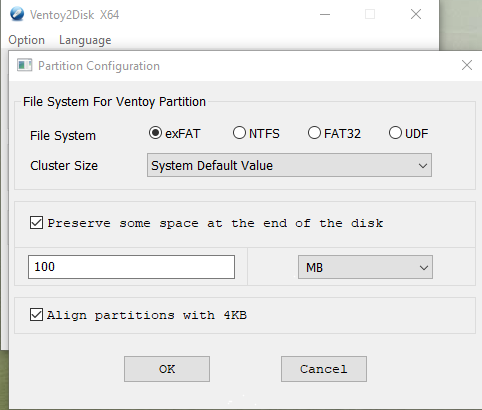
File System for Ventoy partition (Windows Only):
- File System: Choose exFAT
(Readable by both Linux and Windows) - Cluster Size: There is generally no need to change this from the default value.

-
Reserve some space at the end of the disk:
This setting is optional (extra partitions could be manually added). -
Align partitions with 4KB
There is generally no need to change this default.
When finished with Partition Configuration click OK to close the dialog.
5. Click Install to begin writing the Ventoy system to USB:
- When Ventoy USB creation has finished note that “GPT” should be seen under both the “Ventoy In Package” and “Ventoy In Device” panels – If this is not the case, you will have to start again.
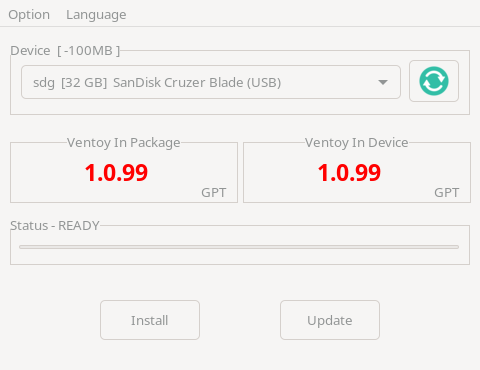
- The Ventoy application may now be closed.
- Cycle your Ventoy USB (optional).
(eject it and insert it again after a few seconds).
6. Drag the Manjaro Installer ISO to the Ventoy USB:
-
At this point you may drag your Manjaro Installer (and any other) ISO you wish to the Ventoy USB (limited only by the USB capacity). See here for the list of ISO’s supported by Ventoy.
-
ISO files may need to be renamed, substituting spaces in filenames with a dash, period or underscore character. This can also tidy how the ISO file appears in the Ventoy menu.
-
Boot the new Ventoy USB and a menu will soon appear listing each ISO as a menu item. Click the menu item required to launch the Manjaro Installer ISO (or any other ISO of your choice).
Ventoy CLI (Linux)
The following examples are based on this author’s verified usage;
- All parameters are case sensitive.
- Edit command-line for your specific use case.
- Substitute
/dev/sdXfor the target USB location.
Create a Ventoy USB (UEFI/GPT mode):
sudo sh ventoy -i -r 512 -S -g -L VentoyGPT /dev/sdX
Create a Ventoy USB (BIOS/MBR mode):
sudo sh ventoy -i -r 512 -S -L VentoyMBR /dev/sdX
Update a Ventoy USB:
sudo ventoy -u /dev/sdX
- Updates the Ventoy system on an existing Ventoy USB.
- Ensure the new Ventoy version is available in Manjaro.
- The Ventoy USB update process is non-destructive.
Ventoy CLI parameters (Linux)
| Parameter | Description |
|---|---|
-i |
Install Ventoy system to USB (fails if Ventoy already present). |
-I |
Force install Ventoy system to USB. |
-u |
Update an existing Ventoy USB. |
-l |
List Ventoy information. |
-r SIZE_MB |
Reserve some space at end of the disk, (optional). Examples: -r 512 = 500MB, -r 1024 = 1GB, -r 2048 = 2GB. |
-s/-S |
Enable -s or Disable -S Secure Boot Support, (default: enabled). |
-g |
Use GPT partition table, (default: MBR). |
-L VOLUME |
Ventoy USB Label, (default: “Ventoy”) |
-n |
Attempt non-destructive install, See Non-destructive. |
Ventoy CLI (Windows)
The following examples are based on this author’s verified usage;
- All parameters are case insensitive.
- Edit command-line for your specific use case.
- Substitute
/drive:X:for the target USB drive letter.
Specify disk by drive letter/drive:X:or physical drive number/phydrive:1.
Create a Ventoy USB (UEFI/GPT mode):
c:\path\to\Ventoy2Disk.exe vtoycli /i /gpt /nosb /r:512 /fs:exfat /drive:X:
Create a Ventoy USB (BIOS/MBR mode):
c:\path\to\Ventoy2Disk.exe vtoycli /i /nosb /r:512 /fs:exfat /drive:X:
Update a Ventoy USB:
c:\path\to\Ventoy2Disk.exe vtoycli /u /drive:X:
- Updates the Ventoy system on an existing Ventoy USB.
- The Ventoy USB update process is non-destructive.
Ventoy CLI parameters (Windows)
| Parameter | Description |
|---|---|
vtoycli |
Must exist to force CLI usage. |
/i |
Install/Create Ventoy USB. |
/u |
Update existing Ventoy USB. |
/gpt |
Use GUID Partition Table (GPT), (default: MBR). |
/nosb |
Do not enable Secure Boot Support, (default: enabled). |
/nousbcheck |
Do not check whether disk is USB, (default: enabled). |
/r:XXX |
Reserve some space at end of the disk, (optional). Examples: /r:512 = 500MB, /r:1024 = 1GB, /r:2048 = 2GB. |
/fs:XXX |
Choose File System to use (EXFAT,NTFS,FAT32,UDF).EXFAT recommended for cross-platform compatibility. |
/nondest |
Attempt non-destructive install, See Non-destructive. |
See also: Ventoy; Ventoy Docs; Create bootable Windows USB;