Updating the BIOS

Hi all,

In a previous thread, I was advised to update the BIOS of my PC. I left it for a while because I had heard a failed attempt could damage my system, but I’m now ready to try.

I have run sudo install-grub as a first step.

I have some questions:

On a previous thread I was advised to make a record of every BIOS screen because an updated BIOS will return to defaults. Does that mean every screen or only everything under System Status?

What I also don’t understand is if I’m not making any changes to the BIOS settings, wouldn’t they always be at defaults? Do I have to go into every setting after I’ve updated the BIOS and change it to the settings I have now? Sorry if I’m asking dumb questions.

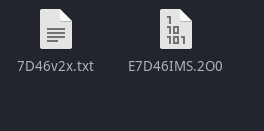
I have downloaded two folders from the manufacturer (MSI) site which i intend to use for the M-Flash update. I have extracted these to my Home directory. The first folder is labelled 7D46v20 and it contains a .txt file which is the new BIOS version, and another file which I don’t know, a .2O0 extension.

I have also downloaded another firmware support folder from the manufacturer site, labelled ME_16.1.38.2676. It contains a folder called FWUpdate .exe files and an .exe tool called MSI ME FW Tool.

My instruction guide tells me to paste the BIOS zip file to the USB, so do i paste only the .txt file from the folder marked 7D46v20 and then where do I put the firmware support from the other folder I downloaded?

Sorry, can someone please guide me, I don’t want to make a mess of this.

Thank you.
l

Ideally, every screen, because the defaults may not be optimal for your particular hardware configuration.

The BIOS or UEFI firmware files have a generic default configuration as they come from the firmware developers. The manufacturer or vendor may then have tweaked those settings for your particular machine before selling it to you.

Put it all on the USB stick.

And have live manjaro usb ready, cause resetting the config might or might not reset the boot menu too.
Here is the guide if that happens

You will not be able to boot manjaro with the defaults anyway. After updating, the minimum you will have to change is to disable secure boot. Probably also raid and acpi setting and the uefi boot mode. That is why you should backup your settings. Writing on paper or making photos of the screen with your phone - up to you.

2 Likes

No. Let me try to explain this in a way you might understand… BIOS firmware doesn’t just hold the configuration for your computer – it is the configuration.

When you “update” the BIOS, you replace it completely with new firmware, complete with factory defaults. The firmware is written to the BIOS, completely overwriting anything that was there before.

You don’t absolutely need to restore every setting, but there will be some that need re-configuring, such as specifying AHCI and configuring your UEFI settings, and disabling Secure Boot.

However, this will always vary depending on the mainboard and type of BIOS so, with that in mind, it does no harm to record every screen for reference.

If the BIOS is ever reset unexpectedly (it can happen in the case of the BIOS battery failing, for example) you can have those screens saved somewhere to easily refer to.

Other settings are typically a matter of preference, but you absolutely need to have an understanding of what you are doing.

Now, that’s not as scary as it may seem because your mainboard manual should usually have a BIOS section that you can refer to, if you’re unsure about a particular setting.

You can likely avoid any deeper settings than those already mentioned, as the defaults are otherwise quite sane.

If you don’t have your mainboard manual, paste your system information (inxi output) below, and we might be able to find a .pdf online.

Apology accepted, but asking is better than not. :wink:

I’m guessing the ME_16.1.38.2676 is a Management Engine tool – it’s only useful in Windows. FWUpdate.exe can likely be ignored also, unless specifically told otherwise by your mainboard manufacturer. Again, it’s a Windows executable.

Do what your guide tells you, and no more. The BIOS firmware (presumedly the .zip file) is all you need to be concerned with.

I will mention that the USB might need to be formatted as FAT32 if it isn’t detected as EXFAT.

You were advised to

update the BIOS (if still necessary)

Is it still necessary? If it isn’t why mess with a working system?

In reply to your earlier post What should I do after a fresh install of Manjaro? you were also given advise by @linux-aarhus

There is no reason to optimise - simply use the system …

That was the reply that got by far the most :heart: and I think I know why…

2 Likes

Thanks 6x12

I did follow the advice about it being necessary. I left it for a few months, but recently I have seen some scary graphics things, such as red and white check squares taking over my screen and display flickering and failure. There is currently no proprietary driver installed for my Nvidia card and you will see that was decided on in my previous threads ie. just use the open source driver.

So I thought maybe it is worth updating that BIOS now.

Thank you to all who have responded.

Just to be clear, in the BIOS there are Motherboard settings, Overclocking settings, OC Profile settings, Hardware Monitor and Security settings. So I need to make notes of ALL of these? Or just the Motherboard settings?

Yes, as has been explained already.

Yes, you did say. I just wanted to be sure, thanks.

Do I paste the 2 folders with the new version and the firmware updates on the USB stick or only the files from inside the folders? Will M-Flash work with folders?

I believe that someone said only the .zip file really mattered. I have no idea, really, because I’ve never had to do this myself.

Here are the contents of the 7D46v20 folder (the update), which I downloaded zipped and then extracted:

So is it these two or the whole folder that should be copied to the USB, I’m not sure?

In case it hasn’t been said or made clear by now:
You’ll need either a working Windows installation
or a bootable (Free)DOS medium
or other minimal Windows environment -
with the files that contain the BIOS update on it as well.

Just with Linux, this will probably not work.

btw:
none of the symptoms you describe are mentioned as issues that have been present and now fixed with previous BIOS versions

So:
Your issues are unlikely to be related to whatever BIOS version you have right now.

Updating it will likely not get rid of those - as the cause is not your BIOS …

A lot of work and anxiety … for no return.
(except that you might have learned a thing or two in the process … :wink:

2 Likes

Oh wow, I think I have completely misunderstood then. So in fact this wouldn’t work with just Linux. I don’t have a Windows installation. At most i have a USB with Hiren’s Boot.

But if the advice is not to update the BIOS because it isn’t necessary, then I won’t.

MSI PRO-B660M-E-DDR4 -BIOS

:information_source:
How to flash the BIOS (SOP Download)
Youtube: MSI® HOW-TO use M-FLASH for BIOS
Please use the built-in decompression tool of Windows to extract the BIOS file
We suggest using Chrome or Edge browser to download BIOS, Drivers, etc.

Isn’t that a Windows environment?

I think so - but I’d need to check to confirm or deny.

If it is - it’s a good tool for the job
(which will not yield the result you apparently hope for - I predict :crystal_ball:
… you’ll have the newest BIOS - but your issues won’t have changed …)

1 Like

Thanks nikgnomic.

This is what I’ve been looking at. But is it only for Windows? I don’t have a Windows installation. I thought it was a Windows tool for Linux as well, if that makes any sense.

Also I’m back to where i was: to update or not to update the BIOS. Because maybe that isn’t the problem.

On start up does your bios have an option to enter bios update. Hiren’s boot will also work I have used it for a firmware update on a gigabyte motherboard so i could put a newer cpu in.

Page 25 of Motherboard manual has information on how to update BIOS from a USB flash drive

Updating BIOS with M-FLASH

Before updating:
Please download the latest BIOS file that matches your motherboard model from MSI
website. And then save the BIOS file into the USB flash drive.
Updating BIOS:

  1. Insert the USB flash drive that contains the update file into the USB port.
  2. Please refer the following methods to enter flash mode.
    • Reboot and press Ctrl + F5 key during POST and click on Yes to reboot the system.
    • Reboot and press Del key during POST to enter BIOS. Click the M-FLASH button
    and click on Yes to reboot the system.
  3. Select a BIOS file to perform the BIOS update process.
  4. When prompted click on Yes to start recovering BIOS.
  5. After the flashing process is 100% completed, the system will reboot automatically.
2 Likes

Thanks nikgnomic.

At which point do i open Hiren’s boot?