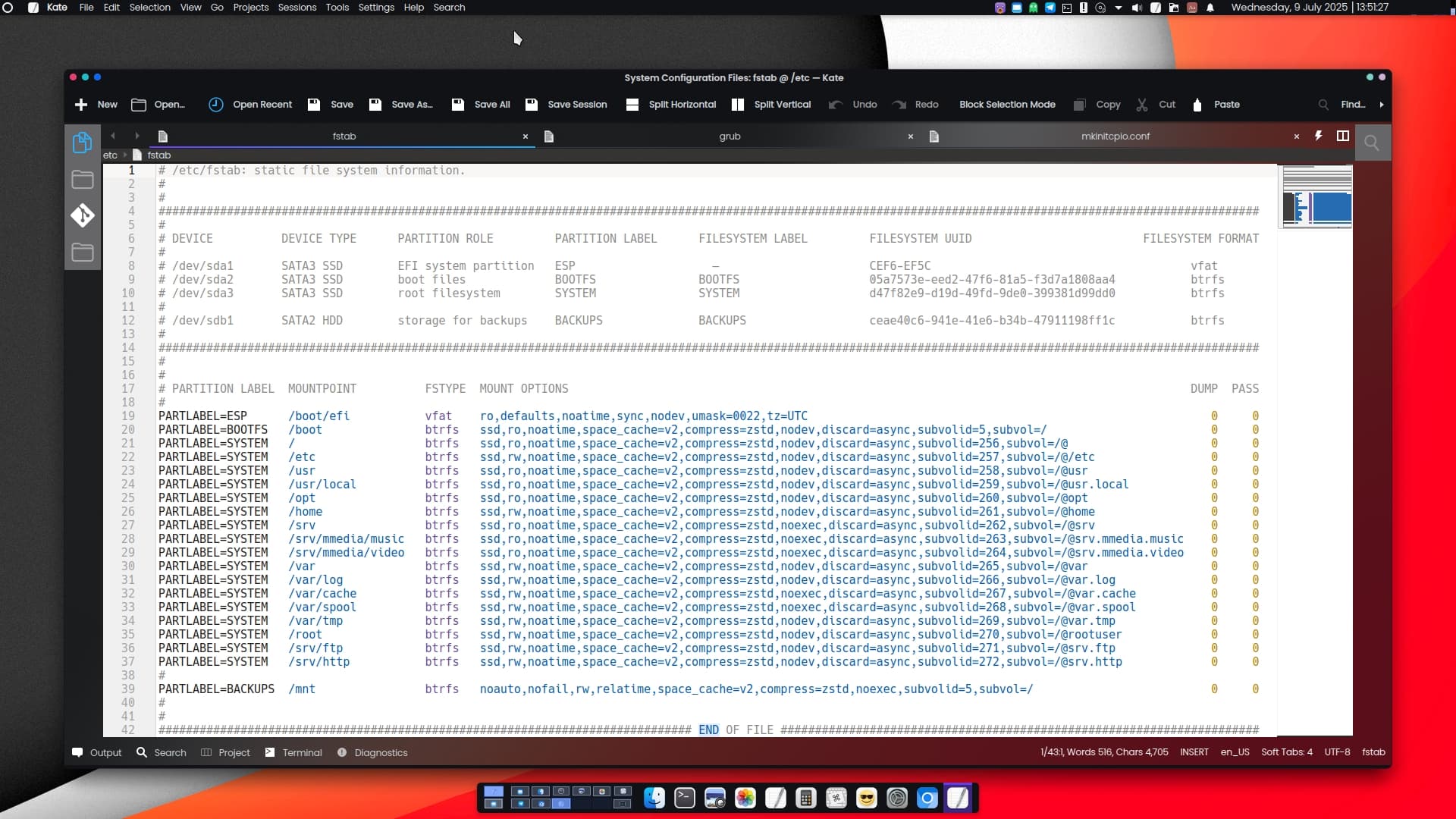
When using btrfs, you can simply do everything as before, but to take advantage of its benefits, you’ll need to do some things differently.
UEFI and GPT
Use GPT as the partition table and create a single EFI partition marked as bootable.
why ?
GPT: The GPT partitioning scheme is the successor to the MSDOS/MBR partitioning scheme. GPT is newer, more robust, and more future-proof than MBR. Multiboot can be implemented robustly with GPT.
EFI Partition: The location where the bootloaders of GRUB, Windows, or others are stored. Bootloaders rarely change. The file system is FAT so that it can be read and booted by UEFI. The partition is marked as “bootable.”
single large btrfs partition
Use a single large btrfs partition and create subvolumes instead of using multiple partitions.
why ?
Previously, separate partitions were used for /boot, /, and /home (sometimes even more) for good reasons.
btrfs has a built-in volume manager. This makes it easier to keep the different parts of an installation together in a single partition (a btrfs volume). Instead of different partitions, subvolumes are used within the btrfs volume.
- The space within a volume is dynamically shared by all subvolumes and snapshots.
- The space is easily expandable using the volume manager.
- A volume can span multiple disks.
- A volume can be converted to RAID.
- A volume backup captures all subvolumes and snapshots.
swap
Use a real swap partition instead of a swap file
why?
A swap file in btrfs is a workaround that should only be used when all other options have been exhausted. According to the developers of btrfs, a swap file in btrfs must be specially marked. This marking impedes various features of btrfs.
Contrary to popular belief, a swap partition is not harmful to an SSD. In particular, a swap file is no more gentle on an SSD than a swap partition.
btrfs layout
Use a btrfs layout that is supported by as many tools as possible
@ → /
Use the btrfs name @ for the subvolume mounted in the Linux filesystem at the / location
@home → /home
Use the btrfs name @home for the subvolume mounted in the Linux filesystem at the /home location
why?
This way, you can use various tools that are configured for this “Ubuntu layout.” Of course, btrfs also offers other options.
The layout plays an important role in creating snapshots of individual subvolumes and rolling back to such a snapshot.
No matter which layout you choose, it must either be supported by the tools you use, or you must be able to keep track of your snapshots even after a rollback. If you lose track and an “old” snapshot is left behind, you’ll quickly run into space problems.
You can find more information about the btrfs layout in the btrfs documentation.
/boot
Do not make /boot a separate partition or subvolume
why?
All kernels and the initram disk are located in /boot. Both are necessary for booting, and both are closely linked to the entire system. When taking snapshots of the entire system (@), the appropriate kernels and initram disk should always be included. This will automatically be the case if /boot is not independent, but part of @
Automatic snapshots of @
Install the necessary tools to automatically create and delete snapshots
- Before and after an update
- After a successful boot
- According to a schedule (hourly, daily, weekly, monthly)
why?
This allows for easy rollbacks if something goes wrong.
- State before the update
- State at which the system last successfully booted
- State before you corrupted your configuration
- State before you deleted important system files
- State one hour, one day, one week, or three months ago
It also allows you to view individual files in their “previous state” - A deleted configuration file
- A file in which you accidentally made a syntax error
You can simply copy and restore the file from the snapshot
Or you can compare it with the version from three weeks ago
Automatic snapshots of @home
Configure to automatically create and delete extra snapshots of @home
- According to a schedule (hourly, daily, weekly, monthly)
why?
If @home is a separate subvolume, the snapshots of @ and @home are performed separately. When the system is rolled back to its previous state four weeks ago, the data under /home remains unchanged; instead, all changes made in /home/* are retained. The system is restored to its previous state four weeks ago, but user data remains untouched. This is because Linux is traditionally a multi-user system, where system and data are kept relatively strictly separate.
Independently, you can restore individual files from @home snapshots for individual users.
- Files deleted one hour, one day, one week, or three months ago.
- A single accidentally deleted LibreOffice file.
- A deleted configuration file.
You can simply copy the file from the snapshot and restore it.
Or you can compare it with the same file from three weeks ago.
noatime
Ensure all btrfs volumes are mounted with noatime as option.
why?
This makes btrfs faster and avoids generating unnecessary metadata when files are only read. Details are linked at:
make btrfs faster
compression
Be sure to use the compression built into btrfs.
why?
This saves space on the volume and, in most cases, also leads to faster data reading and writing. Especially if you have sufficient RAM and a fast processor. The selected compression level is a matter of taste. (My tip: 9)