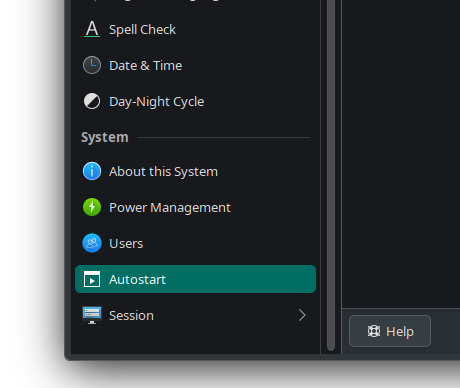
Where are applications that run at startup listed?

I thought they were in System Settings but I can’t find them now? Thank you.

I see user-added applications but not a general list. A relative added an drawing-pad type device and it opens at start; and I’m trying to figure out how to stop that and guessed it was added at startup when installed. System Settings/Autostart - KDE UserBase Wiki But it’s not listed in there, nothing is listed there.

I am no kde user, but the common xdg way is to copy a . desktop file in

~/.config/autostart

Alternatively, it is a systemd service. A gui is for example SysD Manager or Systemd genie.

@Teo Thanks. I recall viewing a list of applications that are set to run at startup but cannot locate it now. The ~/.config/autostart is empty; and I don’t see in Systemd genie where there is a list of startup applications. I don’t mean things that I want to start at startup but everything that does. Perhaps I am confused about what I think I am recalling or maybe it was a different OS. But I could uncheck some things that I didn’t need running.

In regards to the relative’s issue, perhaps the drawing pad application will appear in ~/.config/autostart. I haven’t looked on that machine yet.

That reminds of something semi-related. What happened with that geolocation thing (geoclue?) that used to autostart and couldn’t be removed because something depended on it—maybe Firefox? You could set it to sort of do nothing but couldn’t get rid of it. I no longer see it running in System Monitor.

Thanks.

@tracyanne My post was unclear. I meant that nothing shows up under Autostart, not that it doesn’t show up.

A Device should show up under devices, not autostart.

A Device should show up under devices, not autostart.

How about the software that goes with the device? I’m not looking for the device; I’m trying to stop the opening of the software at startup.

I oversaw the part that a device triggers it. Then it is a udev rule.
Look at /etc/udev/rules.d/ and /usr/lib/udev/rules.d/

Check the vendor and device id with lsusb when device is connected and search for the values in the folder to find the right file among the hundreds.

Do also keep in mind that if you log in with automatic session restore, any (qt-based) application that was running when you logged out will automatically be started again upon the next login.

Thanks. lsusb shows this for the device.

Bus 003 Device 008: ID 256c:006d HUION Huion Tablet_GT1602

Nothing seen for it in /etc/udev/rules.d/ but there is in /usr/lib/udev/rules.d which is:

# udev rules for HuionTablet supported devices 
# This file is generated by HuionTablet driver, do not edit 

KERNEL=="uhid",MODE:="0666",OPTIONS+="static_node=uhid" 
KERNEL=="uinput",MODE:="0666",OPTIONS+="static_node=uinput" 
SUBSYSTEMS=="usb",ATTRS{idVendor}=="256c",MODE:="0666" 
SUBSYSTEM=="input", KERNEL=="event\*",ATTRS{name}=="HUION 256C PEN STYLUS",MODE:="0666" 

# KERNEL=="uhid",MODE:="0666",OPTIONS+="static_node=uhid" 
# KERNEL=="uinput",MODE:="0666",OPTIONS+="static_node=uinput" 
# SUBSYSTEMS=="usb",ATTRS{idVendor}=="256c",ATTRS{idProduct}=="006\[0123456789abcdef\]|200\[012\]",MODE:="0666" 
# SUBSYSTEM=="input",KERNEL=="event\*",ATTRS{name}=="HUION 256C PEN STYLUS",MODE:="0666" 
# KERNEL=="hiddev\*",ATTRS{idVendor}=="256c",ATTRS{idProduct}=="006\[0123456789abcdef\]|200\[012\]",MODE:="0666" 
# KERNEL=="hidraw\*",ATTRS{idVendor}=="256c",ATTRS{idProduct}=="006\[0123456789abcdef\]|200\[012\]",MODE:="0666"

I may not have understood the issue exactly in that it might not be a “normal” application but a driver. When she (my sister) starts her machine, a window appears to control the settings of the tablet or the pen. Evidently, it doesn’t work well for the pen and she sets the settings in System Tools instead; but cannot do so until this other window is closed. And for some reason she has to close it twice to get if off.

And, even if the tablet is not connected, this window opens at start up.

After she closes it, all still works fine. It is just a minor annoyance and I thought, “How hard can it be to fix that?” But, perhaps it is not so easy.

Thank you.

These rules do not launch an application, they only set permissions. Have you identified the driver via inxi command?

You also could check if some systemd-services are involved:

$ systemctl list-unit-files | grep -iE 'huion|tablet'

or

$ systemctl --user list-unit-files | grep -iE 'huion|tablet'

Maybe there are kernel messages:

$ sudo dmesg | grep -iE 'huion|256c|006d|tablet'

Thank you.

It looks like this might be the one of interest. I mean is this the reason it runs at startup?

systemctl --user list-unit-files | grep -iE 'huion|tablet'
app-huiontablet@autostart.service                                      generated -
app-huiontablet@c8ccab45507a43329f0e92b1066512cc.service               transient -

The tablet does not appear for -inxi -Fxxxz or systemctl list-unit-files | grep -iE 'huion|tablet'.

If you want to stop them you could disable or even better mask them. When masked they won’t start at boot. But first check status

$ systemctl --user status app-huiontablet@autostart.service

and identify source

$ systemctl --user cat app-huiontablet@autostart.service

The cleanest approach is to find the original .desktop file and disable its autostart rather than modifying the generated systemd unit.

Thank you, again.

[Desktop Entry]
Encoding=UTF-8
Name=HuionTablet
Comment=Huion driver
Exec=/usr/lib/huiontablet/huiontablet.sh
Icon=/usr/share/icons/huiontablet.png
Terminal=false
Type=Application
X-Ubuntu-Touch=true
Categories=Application;Utility;Qt;
StartupNotify=true
Name[en_US]=HuionTablet
NoDisplay=false
X-GNOME-Autostart-enabled=true
X-GNOME-Autostart-Phase=Application
SingleMainWindow=true
X-GNOME-UsesNotifications=true
X-GNOME-SingleWindow=true 

Just change this line to false?
X-GNOME-Autostart-enabled=true

I don’t understand the driver or why it’s GNOME. But I think she needed it to get anything to work and then closes it and uses the pen settings in System Settings. It’s driver 15.0.0.175-1.

Actually, disabling them — with or without the now option — will also already prevent them from getting started at boot time.

mask is intended for if you don’t want any other service starting this particular service on demand, which is probably not what @Gary1 wants.

I don’t own a device like that, and therefore I don’t have that service file on my system — he says, without looking :man_shrugging: — but if there is also a .socket file for it along with the .service, then perhaps best is to disable (but not mask) the .service and enable the .socket instead. That way, the software will only be loaded when the device is plugged in.

worth to try it.

probably also this one.

Thanks. Changed the two lines and shutdown/restart and still opens that window.

I’ll try the socket/service next.

I don’t think there is a .socket file as this should have been listed with the same command it lists .service files (as long as you did not truncate the answer).

You could first only try to disable the service:

$ sudo systemctl disable app-huiontablet@autostart.service

In a second step if needed maybe also the other service:

$ sudo systemctl disable app-huiontablet@c8ccab45507a43329f0e92b1066512cc.service

Thank you. Perhaps I’m doing something stupid but it appears to not find it.

❯ sudo systemctl disable app-huiontablet@autostart.service
Failed to disable unit: Unit app-huiontablet@autostart.service does not exist

but

systemctl --user list-unit-files | grep -iE 'huion|tablet'

returns it as

app-huiontablet@autostart.service 

But it’s not in here:

❯ systemctl list-unit-files --type=service --state=enabled

UNIT FILE                          STATE   PRESET   
avahi-daemon.service               enabled disabled
bluetooth.service                  enabled disabled
cronie.service                     enabled disabled
cups.service                       enabled disabled
getty@.service                     enabled enabled  
ModemManager.service               enabled disabled
NetworkManager-dispatcher.service  enabled disabled
NetworkManager-wait-online.service enabled disabled
NetworkManager.service             enabled disabled
nvidia-hibernate.service           enabled disabled
nvidia-resume.service              enabled disabled
nvidia-suspend.service             enabled disabled
sddm.service                       enabled disabled
systemd-timesyncd.service          enabled enabled  

14 unit files listed.

So, tried, although not sure:

❯ sudo systemctl --user disable app-huiontablet@autostart.service
Failed to connect to user scope bus via local transport: $DBUS_SESSION_BUS_ADDRESS and $XDG_RUNTIME_DIR not defined (consider using --machine=<user>@.host --user to connec
t to bus of other user)

Then tried to check the status and it appears there are other issues. Not sure if caused but editing the file earlier, changing those two lines to false. (EDIT: changed those two lines back to true and the list got a lot shorter; so deleted that block from this post because was quite large.)

If she connects the tablet without a driver, it just works as another monitor. When she added the driver, the tablet worked but that pen and screen were out-of-sync by several inches. If she closes that window to which I’ve been referring and sets the pen in System Settings then the pen and screen are in-sync.

Thanks.

After changed to true, much shorter. It reads huionCore is not running and huiontablet is running. Don’t know the difference or why one is running and the other not.

❯ systemctl --user status app-huiontablet@autostart.service
● app-huiontablet@autostart.service - HuionTablet
    Loaded: loaded (/etc/xdg/autostart/huiontablet.desktop; generated)
    Active: active (running) since Sat 2026-11-07 17:31:14 EST; 10min ago
Invocation: 5d8d9dbb0a604a0a93901e9b2b6d2a94
      Docs: man:systemd-xdg-autostart-generator(8)
   Process: 1231 ExecCondition=/usr/lib/systemd/systemd-xdg-autostart-condition  GNOME (code=exited, status=0/SUCCESS)
  Main PID: 1260 (huiontablet.sh)
     Tasks: 23 (limit: 18595)
    Memory: 144.8M (peak: 145.2M)
       CPU: 14.977s
    CGroup: /user.slice/user-1000.slice/user@1000.service/app.slice/app-huiontablet@autostart.service
            ├─1260 /bin/bash /usr/lib/huiontablet/huiontablet.sh
            ├─1402 /usr/lib/huiontablet/huionCore -d
            └─1403 /usr/lib/huiontablet/huiontablet -d

Nov 07 17:31:14 christylu-hpzbookfury173inchg8mobileworkstationpc huiontablet.sh[1260]: /usr/lib/huiontablet/huiontablet
Nov 07 17:31:14 christylu-hpzbookfury173inchg8mobileworkstationpc huiontablet.sh[1260]: huionCore is not running
Nov 07 17:31:14 christylu-hpzbookfury173inchg8mobileworkstationpc huiontablet.sh[1260]: huiontablet is running
Nov 07 17:31:14 christylu-hpzbookfury173inchg8mobileworkstationpc huiontablet.sh[1260]: kill huiontablet before restart
Nov 07 17:31:17 christylu-hpzbookfury173inchg8mobileworkstationpc huiontablet.sh[1402]: 2026-11-07 17:31:17.848 ERROR Cannot get tty state
Nov 07 17:31:17 christylu-hpzbookfury173inchg8mobileworkstationpc huiontablet.sh[1402]: 2026-11-07 17:31:17.861 ERROR Wrong size written to uhid: 4368 != 8
Nov 07 17:31:19 christylu-hpzbookfury173inchg8mobileworkstationpc huiontablet.sh[1402]: 2026-11-07 17:31:19.029 ERROR Wrong size written to uhid: 4368 != 8
Nov 07 17:40:09 christylu-hpzbookfury173inchg8mobileworkstationpc huiontablet.sh[1402]: 2026-11-07 17:40:09.551 ERROR Wrong size written to uhid: 4368 != 8
Nov 07 17:40:09 christylu-hpzbookfury173inchg8mobileworkstationpc huiontablet.sh[1402]: 2026-11-07 17:40:09.571 ERROR Wrong size written to uhid: 4368 != 8

@scotty65 Thanks for instructions. Results are below. I suppose this is why cannot get the window from opening at start. No big deal, I guess, she just has to close before the tablet will work properly.

❯ systemctl --user disable --now app-huiontablet@autostart.service
The unit files have no installation config (WantedBy=, RequiredBy=, UpheldBy=,
Also=, or Alias= settings in the [Install] section, and DefaultInstance= for
template units). This means they are not meant to be enabled or disabled using systemctl.
 
Possible reasons for having these kinds of units are:
• A unit may be statically enabled by being symlinked from another unit's
 .wants/, .requires/, or .upholds/ directory.
• A unit's purpose may be to act as a helper for some other unit which has
 a requirement dependency on it.
• A unit may be started when needed via activation (socket, path, timer,
 D-Bus, udev, scripted systemctl call, ...).
• In case of template units, the unit is meant to be enabled with some
 instance name specified.
Don’t use sudo with systemctl --user, as you are dealing with user services, not system (root) services.

Also, you can completely leave out the sudo from systemctl commands as polkit will prompt you for your password when changing system services.

So, for system services (i.e. no --user in the command), systemctl <action> nameofthe.service will work. It has been several years since I last typed sudo systemctl to modify a system service.

In fact, you can even leave off the .service part of the command in most cases.

So, try the following:

systemctl --user disable app-huiontablet@autostart

or

systemctl --user disable app-huiontablet@autostart.service

To disable and stop the service immediately, rather than from next login, you can use the following command:

systemctl --user disable --now app-huiontablet@autostart

or

systemctl --user disable --now app-huiontablet@autostart.service

Regarding the location of the Autostart entry, there may be one location where you haven’t looked: /etc/xdg/autostart/.

I picked this up after downloading the snapshots of some of the HuionTablet AUR packages & extracting them to see if there were any references to systemd or autostart.

Anyway, the PKGBUILD for the AUR (en) - huiontablet package has this line:

sed -E -i "s|(sysAutoStartDir=).*|\1$pkgdir/etc/xdg/autostart|" install.sh

So, if that was the package installed, then it possibly created an autostart entry in the /etc/xdg/autostart directory.

I know that I have quite a few entries in that directory:

scotty65's ls -lh /etc/xdg/autostart
❯ ls -lh /etc/xdg/autostart
total 108K
-rw-r--r-- 1 root root  312 Oct 11 10:48 at-spi-dbus-bus.desktop
-rw-r--r-- 1 root root  714 Oct 16 02:00 backintime.desktop
-rw-r--r-- 1 root root 2.4K Oct 19 20:25 baloo_file.desktop
-rw-r--r-- 1 root root  545 Oct 18 17:23 geoclue-demo-agent.desktop
-rw-r--r-- 1 root root 2.0K Oct 28 19:09 gmenudbusmenuproxy.desktop
-rw-r--r-- 1 root root 3.0K Oct 28 19:38 kaccess.desktop
-rw-r--r-- 1 root root  121 Oct  9 00:38 msm_kde_notifier.desktop
-rw-r--r-- 1 root root 3.9K Nov  4 11:36 org.kde.kclockd-autostart.desktop
-rw-r--r-- 1 root root 1.6K Nov  4 18:25 org.kde.kdeconnect.daemon.desktop
-rw-r--r-- 1 root root 2.5K Oct 28 19:09 org.kde.plasma-fallback-session-restore.desktop
-rw-r--r-- 1 root root 1.2K Oct 28 19:09 org.kde.plasmashell.desktop
-rw-r--r-- 1 root root  190 Dec 16  2025 org.moson.matray.desktop
-rw-r--r-- 1 root root  169 Oct 27  2024 pamac-tray-budgie.desktop
-rw-r--r-- 1 root root  171 Oct 27  2024 pamac-tray.desktop
-rw-r--r-- 1 root root  158 Sep  2  2024 pamac-tray-plasma.desktop
-rw-r--r-- 1 root root 5.7K Oct 28 19:33 pam_kwallet_init.desktop
-rw-r--r-- 1 root root 6.0K Oct 28 19:19 polkit-kde-authentication-agent-1.desktop
-rw-r--r-- 1 root root 7.3K Oct 28 19:16 powerdevil.desktop
-rw-r--r-- 1 root root 8.3K Aug 29 22:38 print-applet.desktop
-rw-r--r-- 1 root root  208 Sep 12 05:31 xapp-sn-watcher.desktop
-rw-r--r-- 1 root root  237 Apr  9  2026 xdg-user-dirs.desktop
-rw-r--r-- 1 root root 1.8K Oct 28 19:09 xembedsniproxy.desktop

Even though it is a system directory, user accounts will still autostart applications contained in /etc/xdg/autostart/. Basically, it is an Autostart directory that applies to all users.

You might want to install dex and run the dex -ad command to see if huiontablet is included in the autostart entries. I just ran the command myself:

scotty65's dex -ad output
❯ dex -ad
Executing command: /bin/sh -c backintime pw-cache start 2>&1 >/dev/null
Executing command: /usr/lib/kf6/baloo_file
Executing command: /usr/lib/geoclue-2.0/demos/agent
Executing command: gmenudbusmenuproxy
Executing command: kaccess
Executing command: msm_kde_notifier
Executing command: kclockd
Executing command: /usr/bin/kdeconnectd
Executing command: /usr/lib/plasma-fallback-session-restore
Executing command: /usr/bin/plasmashell
Executing command: /usr/lib/pam_kwallet_init
Executing command: pamac-tray-plasma
Executing command: /usr/lib/polkit-kde-authentication-agent-1
Executing command: /usr/lib/org_kde_powerdevil
Executing command: /usr/lib/xapps/xapp-sn-watcher
Executing command: xdg-user-dirs-update
Executing command: xembedsniproxy
Executing command: feathernotes
Executing command: /home/scotty/bin/iloggedinat
Executing command: /usr/bin/mailnagger --quiet
Executing command: yakuake
Executing command: /usr/bin/matray --delay
Executing command: /home/scotty/bin/ytdlpbatchnew
Executing command: /home/scotty/bin/ytdlpfolderndelaystart 1
Executing command: /home/scotty/bin/ytdlpfolderndelaystart 2
Executing command: /home/scotty/bin/ytdlpfolderndelaystart 3
Executing command: /home/scotty/bin/ytdlpfolderndelaystart 4

As you can see, applications in the /etc/xdg/autostart/ directory, such as kdeconnectd, definitely do autostart when I log in.