One approach could be using Timeshift’s GUI, but that seems to insist on not showing hidden (‘dot’)files and directories which to choose thus remains impossible.
A concrete example:
Contrary to …
… is not excluded and I wonder how @Aragorn’s corresponding timeshift.json (where he excludes it) could look like.
I think I had managed that some 10 years ago (when scripting around LuckyBackup), but don’t remember the exact syntax …
I think I’ve tried that already without success, but I’ll try that once again and edit this answer afterwards.
Edit - 2 new findings:
In Gnome the file manager called from Timeshift’s GUI seems to be Nautilus instead of Nemo - and I might not have configured that one for the root user to show hidden entries (and didn’t find a possibility in the spawned instance).
After above was corrected, I was able to exclude ~/.cache in the GUI
with the effect of finding the line ‘“/home/tn/.cache/***”‘ added to the exclude list, BUT …
… it has no effect for the subsequently produced snapshot: this still includes the ~/.cache directory-tree with all its files …
… or … I misinterpret the hard links into earlier snapshots?
~/.cache
or, as also referred to as: /home/username/.cache
is something you can delete at any time
It’s nothing mission critical and will be re-created as needed.
No need or even benefit from backing it up and restoring it.
It is for that I use timeshift for system backups, in which I explicitly exclude my home directory. That I backup with rclone daily to a Microsoft (*vommits*) cloud account that my wife’s paying for.
Ok, well firstly I’d like to make a very important correction.
Timeshift is NOT a backup tool. At best, it will snapshot your system onto your system disk. This won’t protect against system disk failure, but it’ll let you wind back an issue very quickly.
You can use Timeshift to rsync snapshots to an external disk, but this can make restoring snapshots more prone to failure.
You can also set up Timeshift BTRFS, and export BTRFS snapshots (which are backed up snapshots).
Generally, Linux environments try to make shortcuts accessible to everyone… if you look in a ‘View’ menu at ‘Hidden Files’ you’ll see the shortcut printed there CtrlH and if you look in some Keyboard Settings (again, try opening dolphin and then press CtrlAlt. to pull up shortcuts) and type ‘hid’.
So now back to Timeshift, Settings>filters… Add files…
Select ‘Home’ and try your shortcuts to toggle 'HIDDEN’ stuff.
It’s important to keep snapshots lean and tidy - don’t include anything other than system files, and avoid any large caches or useless repositories.
I also use Back-in-time, and this creates an ‘incremental’ backup to my first level storage media… As it’s incremental, it saves space. It can also be run frequently so that you get frequent snapshots of your personal stuff.
Generally, you must think this way:
System drive can fail.
Storage drive can fail.
PSU can explode prompting a rebuild
Your girlfriend throws a fit and throws it all in the bath and then burns down the house.
hm … on my gnome machines I do use timeshift, and on all of them I exclude e.g. the directory “.cache”.
Timeshift GUI opens Nautilus (edit: thanks to @Ben, it is not nautilus but a window that looks like nautilus) on my system(s), if you do not see the hidden directories, just press [Ctrl]+H (this even works if it is not nautilus).
This always works for me
Edit: I should read all the posts before I answer … @Ben was much more detailed and did give the answer already …
Thank you - actually the Timeshift GUI does not open Nautilus; but Nautilus and Timeshift will open the GTK ‘file chooser dialog’ or ‘file picker’ which is part of the GNOME toolkit.
Annoyingly, Timeshift will also do this on Plasma, so that we can’t see our bookmarks/places.
It’s actually a standalone widget in the app, not the Nautilus (or other) file manager.
It’s confusing because it’s integrated with the same sources Nautilus uses (gvfs and xdg) for bookmarks/devices; and of course, it doesn’t actually say ‘File Chooser’… here it just says ‘select directories’ (which is a ‘file’ operation, and GNOME simplifies ‘Files’ to ‘Nautilus’).
Understood - thanks Ben for clarification (I now see the difference - working really since some years with Gnome - funny enough I never ever recognized this …)
Anyhow - [Ctrl]+H works to view the hidden files and directories and (de)select the ones not needed for timeshift, and that was the question at the beginning I think …
At least on my xfce on ext4 (rsync), home is excluded by default (which means the cache is also excluded). No idea if the btrfs version has some bug, but as already said, timeshift is not the right tool for home anyway.
(Its effect should be visible in the ‘.json’ anyway.) More interesting: You didn’t inspect the snapshot itself (re existence of ~/.cache therein), did you?
If you (and Teo, Ben, …) had read my posts you’d know that backing up /home/<user>/*without…/.cache has been one of the (so far not reached) goals.
The rest of the thread is essentially a flood of the (shared) opinion that one may not use Timeshift for back up. … without particularizing why. ¹⁾
While this wasn’t exactly surprising, the fervor (with an almost religious impression) did surprise me - didn’t anticipate that I committed such a sacrilege.
¹) Only exception
What do you mean with ‘protect’? Looking into the snapshots I see each file with all its properties.
… and I had a look into Déjà Dup and I didn’t like it. And I had a 2nd look into it and still didn’t like it.
(Unfortunately I currently cannot proceed experimenting since my laptop system suddenly has a real issue: logging into the main user leads to a unresponsive state. This had happened occasionally before, but then taking dropbox out of the autostart (where it insists to place itself every time you use it) solved the issue (which afterwards didn’t re-occur even with an active dropbox).)
Anyway, I could rededicate the topic to asking again about backup tools in general - or rather open a new one?
The biggest achievement of this one seems an opportunity to flood each other with ♡s.
When I say protect - I mean - the ability to restore a single file - thus protecting the data in that file.
timeshift does not provide functionality to restore single files - and while you can use it to create snapshots of your home - if you have a single file you want to roll back you will have to do it manually.
If you really want to use timeshift for backing up home look at the Filters tab where you can create any filter you want - but remember - this is done on every run.
As I recall there is no method to define individual snapshots - I may be wrong.. I am no timeshift user and my backup strategy is different from most.
When I look into one of its snapshots, either through its GUI (4th button in its main tool bar (‘Durchsuchen’ in the German version)) or opening the snapshot’s directory’s (named by date) localhost-subdirectory with the file manager, I see each file individually, can copy it and paste it to replace a newer corrupted version in the directory from where it had been backed up.
So, what part of restoring is missing?
edit: And yes I’ll have a 2nd look into backintime.
This was the one I developed after leaving Linux Mint and finding out that I couldn’t restore any of my previous six snapshots (Rsync backups to a /mnt HDD)… partly due to the index being too large, after 20 minutes parsing, it failed on two occasions… so I ended up wtih a clean install, though at least you can browse the snapshots and manually import some things.
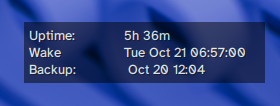
Timeshift & Back-in-Time do it for me, and my desktop conky has a line:
Backup: ${goto 100}${execi 250 ls -r -l /mnt/W4/backintime/SteelLegend/ben/1/last_snapshot/ | sed -n '2p'| cut -c 29-41}
Basically it cuts the date and time from the ‘last backup’ so that it’s visible on the desktop:
That’s been the course I followed - and choosing the appropriately prepared indivdual timeshift.json for each of (3+, might become 5) my backup procedures to be applied.