Need help after failed upgrade

About a month ago, beginning of march, I noticed I had a lot of available upgrades (some 300 packages). Maybe foolishly I just pressed “Upgrade all” or whatever it said…and after that my system doesn’t boot.
Unfortunately I’m not competent enough to sort it out myself, and I don’t even know where to start.

When just letting my system try to boot, I eventually come to a terminal screen telling me I’m in “Emergency mode”, and asking me to enter the root password and hinting on running “journalctl -xb”.
Those about 1500 lines of outputs doesn’t really help me.
What shall I look for?

I can get my system up and running by selecting a snapshot from 2026-03-07 (which might be just before my upgrade attempt).
Can/shall I start from this snapshot and fix from there, or is it better to stay on the failed default boot option and fix from there?

Any help appreciated.

/BA
iI would load the last working (timeshift) snapshot.
If the system is running, try the update via tty.

The most useful place to look for problems with an upgrade is the pacman log: /var/log/pacman.log

If I’m on a snapshot and chose to install a bunch of packages (upgrades or new ones), where would they go? Will an altered snapshot become a newer snapshot, or the default boot option or just forgotten when I reboot?

/BA

Couldn’t find much that caught my attention in /var/log/pacman.log, but maybe the failed udevd service mean something to someone?

[2026-03-07T17:54:19+0100] [ALPM] upgraded yakuake (25.12.1-1 -> 25.12.2-1)
[2026-03-07T17:54:23+0100] [ALPM] transaction completed
[2026-03-07T17:54:29+0100] [ALPM] running '20-systemd-sysusers.hook'...
[2026-03-07T17:54:30+0100] [ALPM] running '21-systemd-tmpfiles.hook'...
[2026-03-07T19:49:08+0100] [ALPM] running '25-systemd-binfmt.hook'...
[2026-03-07T19:49:08+0100] [ALPM] running '25-systemd-catalog.hook'...
[2026-03-07T19:49:08+0100] [ALPM] running '25-systemd-hwdb.hook'...
[2026-03-07T19:49:09+0100] [ALPM] running '25-systemd-sysctl.hook'...
[2026-03-07T19:49:09+0100] [ALPM] running '30-systemd-daemon-reload-system.hook'...
[2026-03-07T19:49:10+0100] [ALPM] running '30-systemd-daemon-reload-user.hook'...
[2026-03-07T19:49:10+0100] [ALPM] running '30-update-mime-database.hook'...
[2026-03-07T19:49:11+0100] [ALPM] running '35-systemd-restart-marked.hook'...
[2026-03-07T19:52:11+0100] [ALPM-SCRIPTLET] Job for systemd-udevd.service failed because a timeout was exceeded.
[2026-03-07T19:52:11+0100] [ALPM-SCRIPTLET] See "systemctl status systemd-udevd.service" and "journalctl -xeu systemd-ud
evd.service" for details.
[2026-03-07T19:52:11+0100] [ALPM] running '35-systemd-udev-reload.hook'...
[2026-03-07T19:53:12+0100] [ALPM-SCRIPTLET] Failed to issue io.systemd.service.Reload() varlink call: Timer expired
[2026-03-07T19:53:12+0100] [ALPM] running '35-systemd-update.hook'...
[2026-03-07T19:53:12+0100] [ALPM] running '40-update-ca-trust.hook'...
[2026-03-07T19:53:13+0100] [ALPM] running '60-depmod.hook'...
[2026-03-07T19:53:19+0100] [ALPM] running '80-cronie.hook'...
[2026-03-07T19:53:19+0100] [ALPM] running '90-mkinitcpio-install.hook'...
[2026-03-07T19:53:20+0100] [ALPM-SCRIPTLET] ==> Building image from preset: /etc/mkinitcpio.d/linux612.preset: 'default'
[2026-03-07T19:53:20+0100] [ALPM-SCRIPTLET] ==> Using default configuration file: '/etc/mkinitcpio.conf'
[2026-03-07T19:53:20+0100] [ALPM-SCRIPTLET]   -> -k /boot/vmlinuz-6.12-x86_64 -g /boot/initramfs-6.12-x86_64.img
[2026-03-07T19:53:20+0100] [ALPM-SCRIPTLET] ==> Starting build: '6.12.73-1-MANJARO'

/BA

Not exactly my area of expertise, but if the log ends there, it looks as if it started mkinitcpio then stopped. If that’s the case, then my guess is that something died before the necessary files were created in /boot.

I’m sure more expert people can say more.

1 Like

Well this is bad obviously, we need udev. The journalctl (actual) logs should have more info.

But regardless of how it is broke in its current state, you will most likely be fixing it the same way.

Boot the live image and resume the upgrade. (Commonly known as fixing an interrupted upgrade.)

1 Like

While you’re on it could you please post the output of this command too? Trying to fix the installation you might run into the same problem again.

I kind of glanced over the snapshot portion, and went to the default fix. But this is also another option.

And this is only If you have increased the snapshot limit beyond 3. The default only gives you 1 usable snapshot, and it’s lost on a single restore.

This default of 3 is changed in:

/etc/timeshift-autosnap.conf


#maxSnapshots=3

If you have increased this from before, you can use Timeshift to restore. Then you can boot into these snapshots for recovery purposes.

They get installed to your grub menu via grub-btrfs, which just looks for read/write root snapshots.

If have you not increased this number, a manual restore via btrfs-tools is possible, but it is more complicated without some btrfs knowledge. So the normal live image fix may be easier.

If you have met those requirements, doing this should be done with care.

As you boot into these snapshots, you will make changes to them. You probably be using the snapshot taken right before the upgrade. The first thing you will want to do is make another, as you may only have so many snapshots to use.

From there you can attempt the upgrade like it was before.

Make sure you have dealt with your pacnew files as well. (Maybe this problem is the /etc/mkinitcpio.conf hook change from udev to systemd?)

If you get it working from there, you can delete all the newer snapshots in Timeshift that were there from before. This is now your new root subvolume.

If you have booted into the snapshot and mucked around. I treat those as tainted; they contain one-off changes you won’t need again. So I delete those.

This might be of help, if you haven’t already seen it:

2 Likes

Nowhere, because snapshots are read-only.

1 Like

You should be able to restore the last working snapshot with Timeshift, then reboot. From there, update with pacman on the command line, not pamac (the graphical “Add/Remove Software” utility).

For reference, the pacman update command is

sudo pacman -Syu
2 Likes

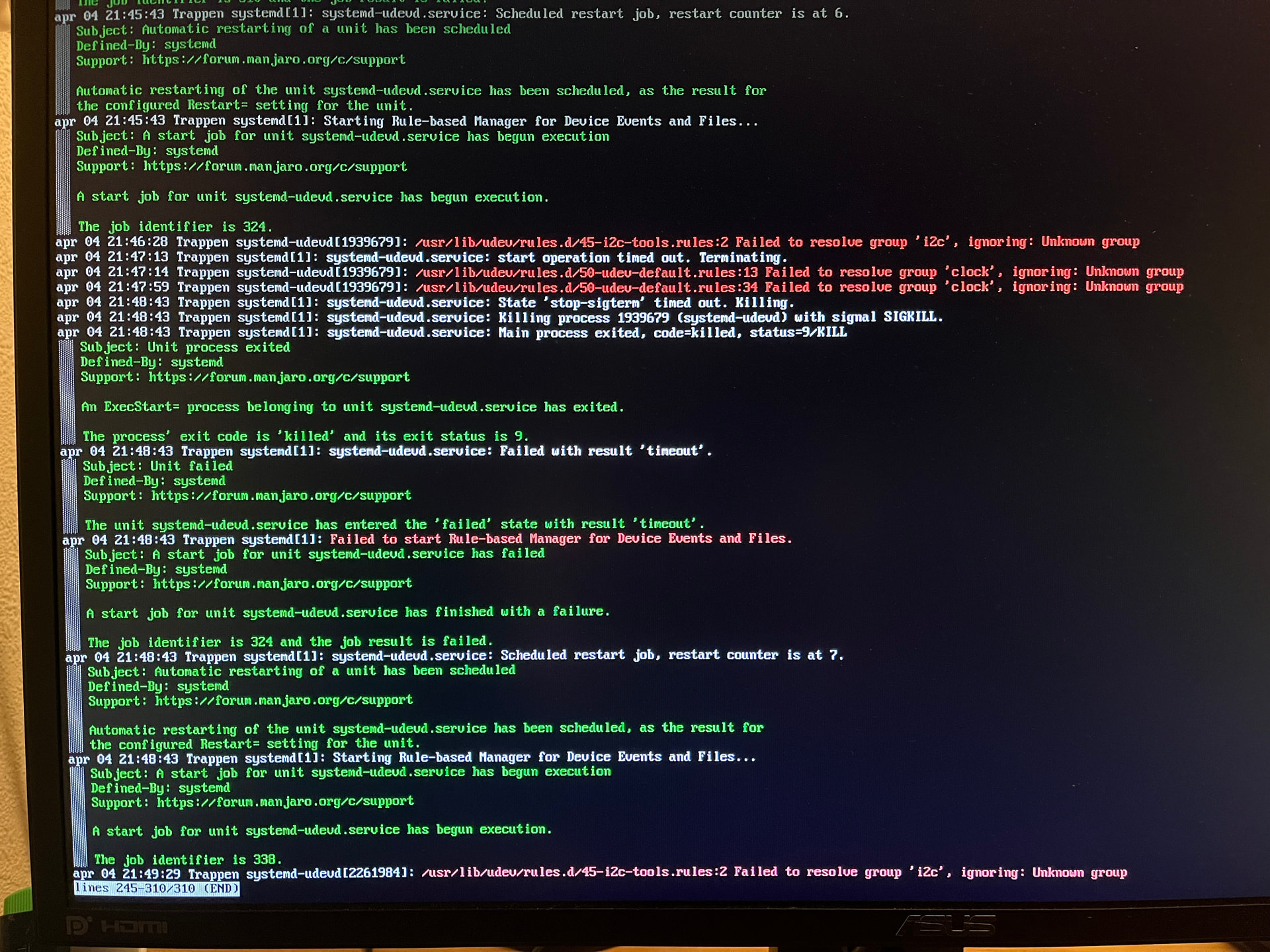
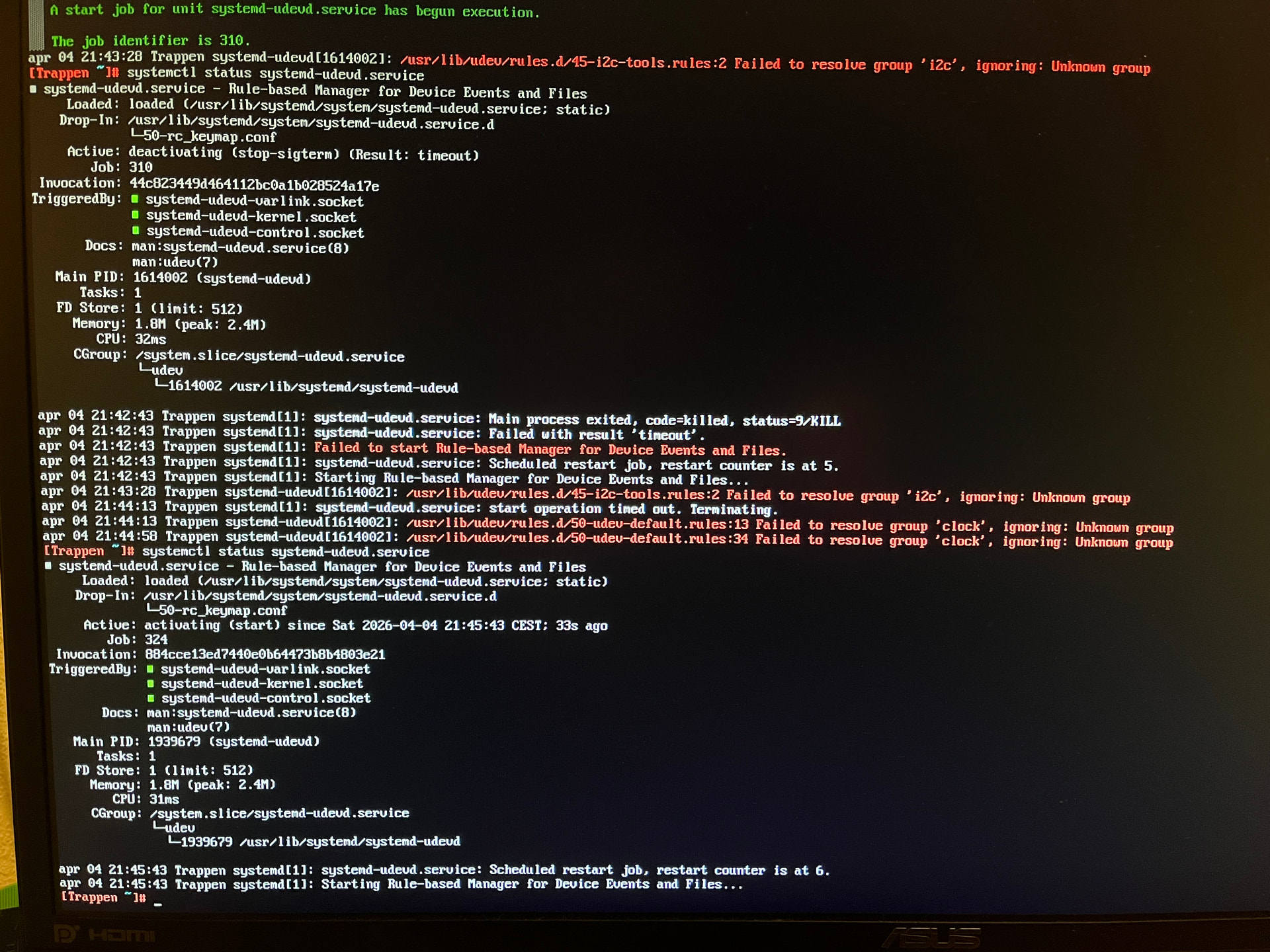
Rebooting my system into the failed (non snapshot) default option, I do see errors regarding the udev service.

Unfortunately I don’t know a way of getting screenshots from the output other than taking a photo, so I apologise in advance for this…

Systemctl status:

Journalctl:

Anyway, thanks for the help so far. I’ll read up on the suggestions you’ve given and see if I can realise a good way forward.

/BA

Timeshift snapshots are cumulative, the first is complete,
the next uses this first plus changed entries.
If you comment a snapshot (in desktop version of timeshift),
this will stay “forever”.
For update starting from a working snapshot using tty (the safer methode!):

  1. logout from your desktop
  2. press strg + alt + F4
  3. login as user, if you are brave, as root
  4. enter sudo pacman -Syyuv or as root: pacman -Syyuv
  5. hit return if prompted and wait until it’s finished.
  6. then press strg + alt +F1 and choose reboot from the (login-screen) menü.

Do you know a option to disable cumulative snapshot’s?

@BarbaArtist
You problably should also take a look for your Free Space from your Partition’s, before you updating.

1 Like

Thanks to all that have responded in any way.
I took this route, and as far as I can see it worked.
At least my system boots up as I’m used to and it seems to be up to date.

Thanks again!

/BA

3 Likes

Settings in GUI.
https://forums.linuxmint.com/viewtopic.php?p=1833425

Nah not possible, but i manually forced it by deleting all previous snapshot’s.

2 Likes

This topic was automatically closed 3 days after the last reply. New replies are no longer allowed.