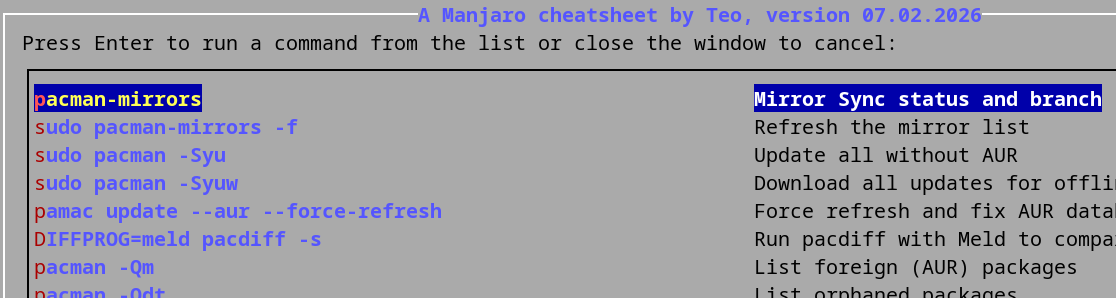
After today’s update to fontconfig 2.17, there is problem, leading to crashing in the default config (possibly in other programs too, judging by a lot of topics in other forums). Fontconfig introduced a “warning”, which is in some cases kind of breaking change (and they expect that every developer out there updates their program). It is the usual ping-pong between the bug-trackers and everybody is pointing the other way…so until fontconfig or gtk or xdialog fixes the bug, here is a workaround to use the cheatsheat in TUI mode:
Replace MODE=Xdialog with MODE=dialog at the beginning.
I know you don’t use Plasma, so I’m reporting these.
I don’t use your cheatsheet every day and it’s not in my usual testing regimen, so I don’t know when it changed. At some point recently, it would seem to launch properly, but running a menu choice would reliably crash out the terminal window. (zsh in Konsole). I didn’t report it because I know there’s lots of finger-pointing going on lately. I figured it would wash out at some point.
Your temporary fix, above, causes it to not launch at all.
I rolled back to Xdialog. For now, I just copy and paste the commands shown in the menu window to a separate terminal window.
Showing the command to be executed is a really nice feature, BTW. Helps me learn and provides a limp-along method for thimes like these.
VERSION=15.11.2025
# Changelog from last version: cleanup version, removed gtk2, xdialog, rkhunter; added spotlight and links to topics
ver. 15.11.2025
#!/bin/bash
# Creator: Todor Uzunov a.k.a. Teo
# License: GNU - free like free speech and free beer for everybody!
# https://forum.manjaro.org/t/my-manjaro-cheatsheet-in-a-menu-form/145943
VERSION=15.11.2025
# Changelog from last version: cleanup version, removed gtk2, xdialog, rkhunter; added spotlight and links to topics

# check if dependencies are present and ask for installation
if ! [[ "$(which dialog)" =~ (dialog) ]] &>/dev/null; then
	echo "dialog dependency is not found, please install: sudo pacman -S dialog"
	exit 1
fi

OPTIONS=(
	1 " Mirror Sync status and branch" "pacman-mirrors"
	2 " Refresh the mirror list" "sudo pacman-mirrors -f" # sudo pacman-mirrors --country Germany --api --protocol https
	3 " Update all without AUR" "sudo pacman -Syu"
	4 " Download all updates for offline install later" "sudo pacman -Syuw"
	5 " Force refresh and fix AUR database in pamac" "pamac update --aur --force-refresh"
	6 " Run pacdiff with Meld to compare changed configs" "DIFFPROG=meld pacdiff -s" # pamac install meld
	7 " List foreign (AUR) packages" "pacman -Qm"
	8 " List orphaned packages" "pacman -Qdt"
	9 " Check for updates of AUR with YAY, do not update" "yay -Qua" # pamac install yay
	10 " Update only AUR packages with YAY" "yay -Sua" # pamac install yay
	11 " Pamac update AUR packages" "pamac update --aur"
	12 " Remove orphaned packages" "sudo pacman -Rsu \$(pacman -Qtdq)"
	13 " Clean YAY, Pacman and Pamac cache" "yay -Scc" # pamac install yay
	14 " Show journal errors from current boot" "journalctl -b -p3 --no-pager"
	15 " Show journal errors from previous boot" "journalctl -b -1 -p3 --no-pager"
	16 " Show systemd bootlog only" "journalctl -b -t systemd"
	17 " Show kernel log" "journalctl -k"
	18 " Check for coredumps" "coredumpctl"
	19 " Clear coredumps on disk" "sudo rm -f /var/lib/systemd/coredump/*" #normally runs biweekly automatically
	20 " Regenerate hashes for the boot files after update" "sudo /root/verifier.sh -update" # requires the extra script, see https://forum.manjaro.org/t/utility-script-my-take-on-a-verified-boot/164729
	21 " Spotlight background refresh" "systemctl start --user spotlight.service" # requires the extra script, see https://forum.manjaro.org/t/spotlight-wallpaper-changer-for-xfce/181665
	22 " Spotlight background info" "xfce4-terminal --hold -e \"journalctl -t spotlight --no-pager\"" # requires the extra script, see above or https://github.com/teou1/spotlight-xfce/
	23 " Trim the root of the SSD" "sudo fstrim -v /" #normally run weekly
	24 " S.M.A.R.T. status of the disk and write cycles" "sudo smartctl --all /dev/nvme0" # smartctl --scan
	25 " Run wavemonitor to check Wifi channel and strength" "wavemon" # pamac install wavemon
	26 " List wifi networks around with strength and channel" "nmcli dev wifi"
	27 " Gather system info with inxi (filtered)" "inxi -zv8"
	28 " Update database for locate" "sudo updatedb" #normally run weekly
	29 " Use MAPARE to check if missing default packages" "bash <(curl -s https://gitlab.com/cscs/mapare/-/raw/main/mapare) -IP"
	30 " Check for missing files from packages" "sudo pacman -Qk 2>/dev/null | grep -v ' 0 missing files' "
	31 " Which package owns an existing file (paste filepath)" "read fileowner; pacman -Qo \$fileowner"
	32 " Which (installed or not) package contains a file (paste filename, online check)" "read whogotit; sudo pacman -Fyx \$whogotit"
	33 " Which (installed) package contains a file or directory (paste filename or path, offline check)" "read whogotit; pacman -Qo \$whogotit"
	34 " Check Appimage and Github Apps for updates" "\$HOME/Applications/appimageupdater5.sh" # requires the extra script, see https://forum.manjaro.org/t/automate-update-checks-for-externally-downloaded-software-in-tar-gz-or-appimage/161008
	35 " Check for flatpak updates and update" "flatpak update"
	36 " Remove orphaned (unused) flatpak runtimes" "flatpak uninstall --unused"
	37 " Clean flatpak cache" "rm -rfv /var/tmp/flatpak-cache-*"
	38 " Clean tmp bash history files and Totem stream cache" "rm -f ~/.bash_history-*.tmp && rm -f ~/.cache/totem/stream-buffer/*"
	39 " Show hidden spaceeaters above 100M in HOME" "du -sh -t +100M ~/.cache/* ~/.config/* ~/.local/share/*"
	40 " Show journal size" "journalctl --disk-usage"
	41 " Cut journal to 2 weeks" "sudo journalctl --vacuum-time=2weeks" # that probably also sets it fixed on 2 weeks
	42 " Display the apps making most network traffic. Exit with q" "sudo nethogs" # pamac install nethogs
	43 " Netscanner. Exit with q" "sudo netscanner" # pamac install netscanner
	44 " Show all network connections of an app (paste name or pid)" "read nethog; ss -tuap | grep \$nethog"
	45 " Whois (paste ip address)" "read ipaddress; whois \$ipaddress"
	46 " List all processes, listening on a network port" "sudo netstat -tulpn"
	47 " A 10-20 sec. cpu benchmark using bc to calculate PI" "time echo \"scale=5000; 4*a(1)\" | bc -l > /dev/null" # pamac install bc
	48 " Read sensors every second, press CTRL-C to exit" "watch -e -n 1 sensors"
	49 " Stress the CPU, useful for thermal or throttling tests, press CTRL-C to exit" "stress -c 16"
	50 " Traffic statistic for the last days and current month (vnstat)" "vnstat -d --style 0 --limit 5 | grep -v estimated && vnstat -m --style 0 --limit 3 | grep -v estimated" # install vnstat and start daemon
	51 " Fuzzy search in systemd services. Exit with esc" "sudo sysz" # pamac build sysz
	52 " Temporary disable Ideapad battery conservation mode" "sudo conservation_mode.sh 0" # pamac build conservation_mode
)
# last unique tag number is 52

while true; do
CHOICE=$(dialog --clear \
		--no-shadow \
		--no-tags \
		--item-help \
		--keep-tite \
		--scrollbar \
		--ok-label "Run" \
		--cancel-label "Exit" \
                --backtitle "" \
                --title "A Manjaro cheatsheet by Teo, version $VERSION" \
		--menu "Press Enter to run a command from the list or close the window to cancel:" \
                79 125 0 \
                "${OPTIONS[@]}" \
                2>&1 >/dev/tty)
[[ $CHOICE ]] || break
echo "${OPTIONS[$(($(($CHOICE*3))-1))]}"
eval "${OPTIONS[$(($(($CHOICE*3))-1))]}"
read -n 1 -s -r -p "Press any key to return to menu or q to exit." REPLY;
echo ""
echo ""
echo "================================================="
echo ""
if [[ $REPLY == "q" ]]; then break; fi
done
Hint: scroll with the little green + or pgup/down keys. The size of the menu is dependent of the default terminal size in the terminal preferences.
I was just thinking the same (git). Or only edit the first script at the top. And link it in the next post. To keep it clean, just one script.
Different versions during the posts are confusing.
It’s a nice cheat sheet.
That was the initial idea, but back then i was TL2 or 3 and after a month or so could not edit the first post anymore.
Anyhow, now i can so i will fix it. And here is a github project:
I tried out your cheatsheet script and wanted to share my honest reaction.
My main issue: This isn’t really a cheatsheet.
A cheatsheet should show me commands that I type myself in the terminal to learn them. Your script does the opposite - it hides commands behind buttons. I click, something happens, but I never learn what actually ran.
The whole point of a cheatsheet is learning the commands, not automating them away.
Other concerns:
Requires external scripts most people don’t have (verifier.sh, appimageupdater5.sh, spotlight)
Hardware-specific commands that won’t work on other systems (nvme0, IdeaPad battery mode)
Some dangerous commands that can break systems, with no preview or safeguards
Dialog colors are hard to read
What this actually is:
A personal automation tool for your specific system. Which is fine! Just shouldn’t be called a “cheatsheet” - that’s misleading.
For me, a cheatsheet means: show me the command, I type it, I learn it. Not: click button, magic happens.
Just my two cents. Hope you appreciate my honest feedback.
One little change would be cool.
If after you run one of the options and return to the list you return to where you were at in the list instead of back at the top.
Thanks
I love this tool to use.
I understand what you mean, but for dummies that’s not an easy way to learn the commands. The output is behind the dialog interface. After closing dialog I see the commands. But then the command has already ran.
A cheat sheet, in my view, is more like a small note you use during an exam—a quick reference you can glance at. It shows the commands, and you still have to type or copy them into the terminal yourself.
With this script, everything runs automatically with one click. That feels more like a maintenance tool than a cheat sheet.
It’s only the way of how to name the project.
ps when you mention a screenshot, please add to the post, because I have no idea what screenshot.
Running menu.sh from cli. I don’t manage to change the colors…
A lot of discussion here Meanwhile i was inspired by some of the ideas and rewrote the thing. There is something positive and something negative in the rewrite. The positive is, it is now a lot easier for everybody to rearrange or add or delete commands, since the array is not numbered anymore and there are no arithmetic functions anymore.
The negative is, the strings are a bit too long and get cut sometimes. Still, it is no show stopper. If one maximizes the terminal a lot more text becomes visible, and the commands are echoed before execution anyway. And one is supposed to read the source code before executing something.
@musdus you probably did not notice the helpline at the “status bar” and that the command is always echoed before execution. At least it was so. Otherwise, you are right, it is MY personal cheatsheet. It is shared as inspiration, and is not intended to be absolutely universal. There are comments about the additional scripts and that those are found in my other topics. Still, about half of the commands are pretty universal - just delete what you do not need. Now it is easy with the new version from today.
@Daumeier I do not think it is technically possible.
@MAYBL8 not sure if possible. It is a simple loop as of now. But a good idea for the future. I would like that too.
@musdus oh, that screenshot is nasty. Here is how it looks on my end:
The thing is, there are no colours anywhere that are defined by me. It is what is hardcoded in dialog as defaults since decades. I have never thought of colors, because i find the defaults sensible. It should be possible otherwise.
But one thing has to be clear: those are default color palettes from your terminal. So the first thing to do will be to check your terminal settings and change the theme there, for example choose a dark theme.
So, enjoy the new release - in the first post and on github, if you do not like it you can use the old version from the github releases.
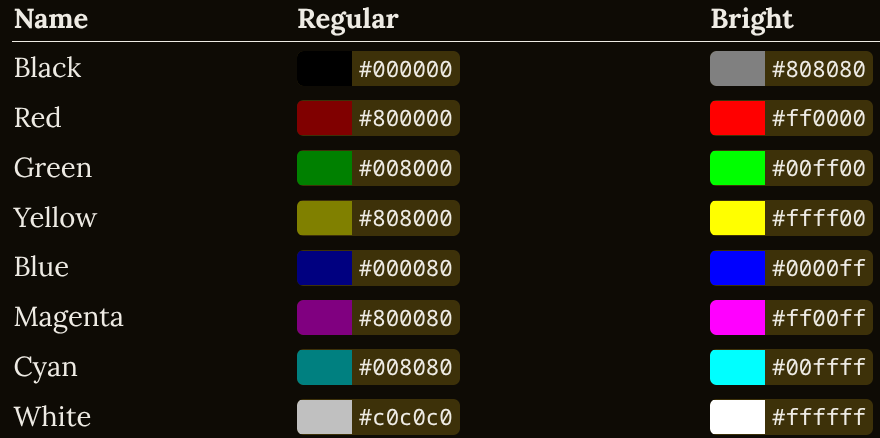
After that open .dialogrc with your favorite text editor and start experimenting. For example i did a quick test and replaced pretty much everything with (white,black,off) which resulted in gray text on black background. Do not forget you are back to 16 colors now - black, red, green, yellow, blue, magenta, cyan, and white. And their bright versions.
Still, the right way is to fix your terminal settings, since those colors are literally defaults since decades and if you have problem with this you will have problem with other TUI programs too. Changing the terminal colors from the settings will also show you the changes live, and changing with .dialogrc you will have to restart the script every time to see changes.


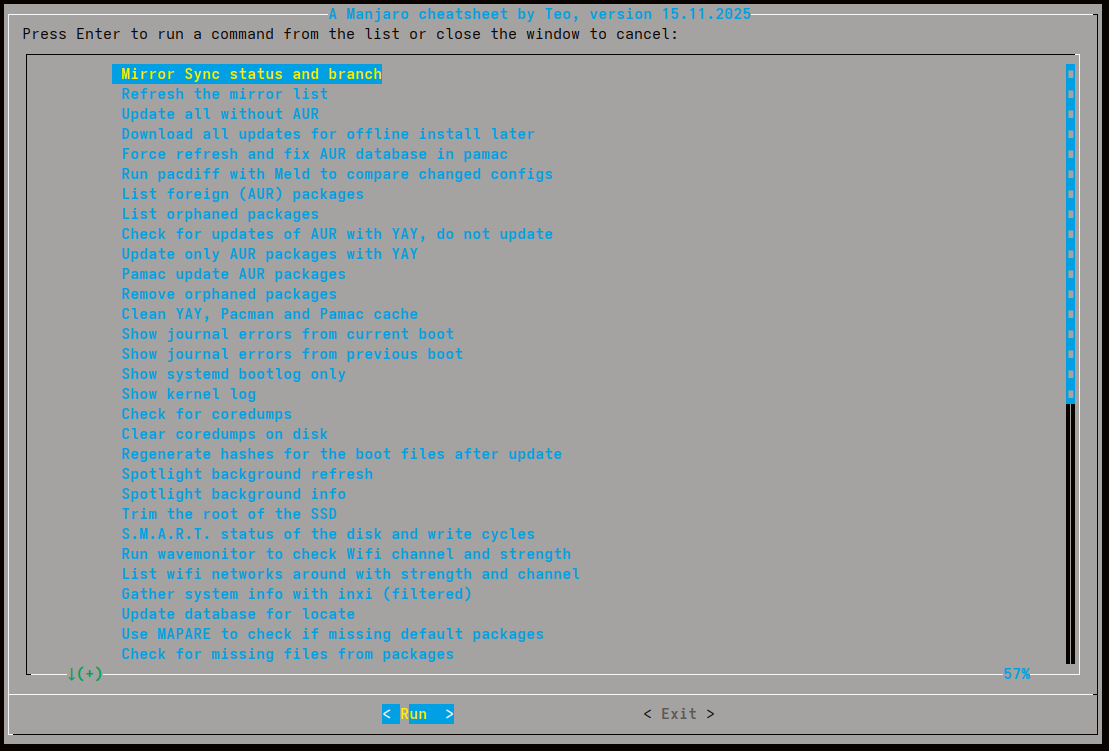
 for testing.