I am a complete novice when it comes to networking. In Windows, I had a Synology NAS. I removed Windows and installed Linux Manjaro Xfce. I use Thunar as my file explorer.
The issue is that I do not see my NAS in Thunar by default.
When I type smb and enter the IP address, I can see the different folders on my NAS.
Is there a way to make this visible by default when the OS starts up? I’ve found some tutorials, but they’re like Chinese to me. Terminology such as SMB, SSH, UUID, etc. sounds more like the Oracle of Delphi to me.
In Dolphin file manager I can see my NAS standard but I’m afraid to use Dolphin in Xfce as standard File manager. I prefer Thunar
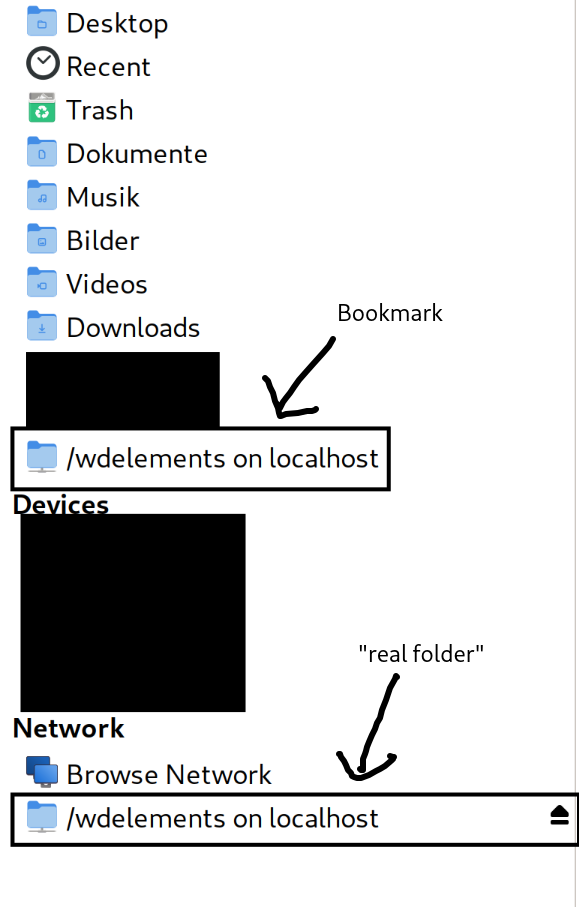
Once you connect to the address, create a bookmark in Thunar if necessary. Then click on it and it will connect. Thunar is lightweight and does not have the same features as Dolphin. For security (no firewall installed) and maintenance (less time for developers) reasons, Thunar does not scan for network drives as the Windows Explorer does.
I guess the avahi-daemon service, which is disabled by default, can discover network drives for thunar, but if the computer is used in different networks, a firewall is highly recommended.
The bookmarking of Thunar is not very intuitive, i remember i struggled the last time too. I cannot test right now, but i am not sure if the folder had to be select on the left or the right. So you can also try rightclick from the parent folder, when it is highlighted on the right.
I just don’t remember anymore which of the 2 methods worked. I my opinion it would be more intuitive if both worked, but that is not the case.
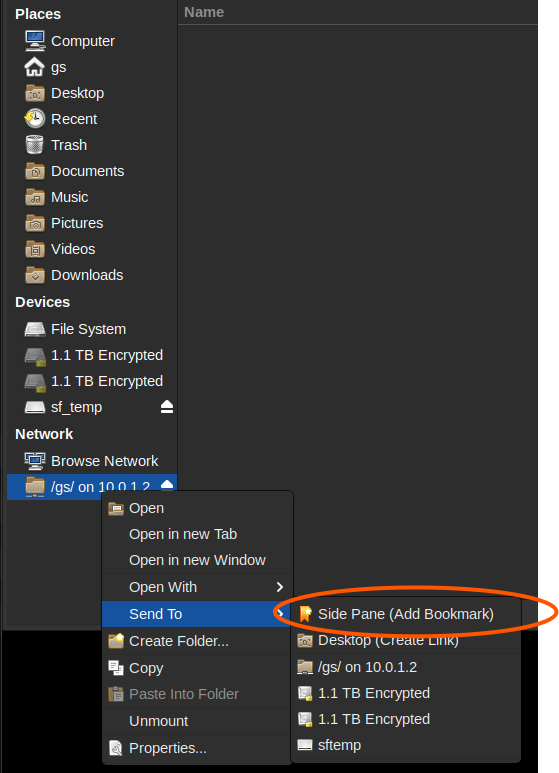
As of Thunar 4.20.2, to create a bookmark you need to first mount the network share, and then right-click the mount in the Network section, and choose Send To > Side Pane (Add Bookmark), as was mentioned above:
I did reset my NAS tot factory settings after making a backup of my data.
As you know, I have no more Windows 10 on my PC.
Only Linux Manjaro Xfce with thunar as file manager.
Maybe someone can me guide step by step through the installation proces on Linux?
I do not want to use software from AUR.
I have re-installed my NAS.If I want to connect to my NAS from my PC, what do I have to configure? NFS? SMB?, SSH? What is for example my hostname? Can I chose it?
I have no idea what to do.
I have a dynamic IP adress (DHCP). My NAS is connected to my router via LAN.
I want to use my NAS as backup disk for my documents, photo’s…from my desktop PC
I have internet connection on my PC via WIFI
When I type my IP adress, I can connect to it but when I restart my PC I have to enter it every time again. It would be better if I can see my NAS folder standard in the file manager Thunar at te left side.
Al those questions is irrelevant for a client connection to a Samba (SMB) file-service.
A lot of linux old-timers refer to Samba as cifs which is still a package name cifs-utils most likely kept so the old-timers can remember that SMB is the correct name.
For you NAS to be visible for your client, you may need to enable the avahi-daemon; the following command will enable the related avahi units
sudo systemctl enable --now avahi-daemon
Windows networking - AKA Samba or SMB - and it is fairly easy to connect to a Synology NAS using a Manjaro samba client.
Make sure you have an empty file in /etc/samba/smb.conf
Yesterday evening, I searched for a long time but couldn’t get it to work.
This afternoon, I simply reinstalled my entire operating system. Reinstalling Linux Manjaro is a piece of cake
Strangely enough, I can now access my NAS via SMB protocol and was suddenly able to create a bookmark for it. I don’t know how I came up with the solution, but the main thing is that it works! To everyone on this forum, thank you very much for your input and help!
Since Xfce 4.8 (Thunar 1.2) it is possible to browse remote locations (such as FTP servers or Samba shares) directly in Thunar. To enable this functionality, ensure that gvfs and sshfs (as well as gvfs-smb if you need SMB/CIFS support) are installed. A ‘Network’ entry is visible in Thunar’s side bar and remote locations can be opened by using the following URI schemes in the location dialog (opened with Ctrl+l): smb://, ftp://, ssh://, sftp://, davs:// & followed by the server hostname or IP address.
There is no URI scheme for NFS shares, but Thunar can issue a mount command if you setup your fstab properly.
What is important here is the noauto which prevents the share from being mounted until you click on it, user which allows any user to mount (and unmount) the share, _netdev which makes network connectivity a pre-requisite, and finally, bg which puts the mounting operation in the background so if your server requires some spin-up time, you will not have to deal with time out messages and re-clicking until it works.
Tip
If you want to permanently store passphrases of remote filesystem locations, you have to install GNOME Keyring.
It can be necessary to specify the mountpoint as a subfolder to /media in order for Thunar to display the new device for any non-root user.