ICC-printer profiles generated by Argyl-CMS not accepted by Manjaro systemwide

Maybe someone is experienced with Argyl here??? I hope so!

Just installed my new Canon Maxify GX4050 and wanted to manage its color by CMS. So I installed Argyl-CMS and DisplayCAL and further TurboPrint. Luckily I just own a spectral photometer, an old eye one.

After having set up all these parts, I printed my color charts, measured the patches and generated my first ICC profiles with Argyl. But after I had inserted the new ICC profile into Turbo Print, the printer was blocked. “Cannot connect to printer”.
After some search, I found, that Turbo Print has generated a malformed PPD file. But that was not all:
I found out, that Manjaro does not accept the new generated ICC profile in the system wide color settings, where I wanted to link it to my printer. I cannot get it in the profile list.

There is something very strange with this profile!
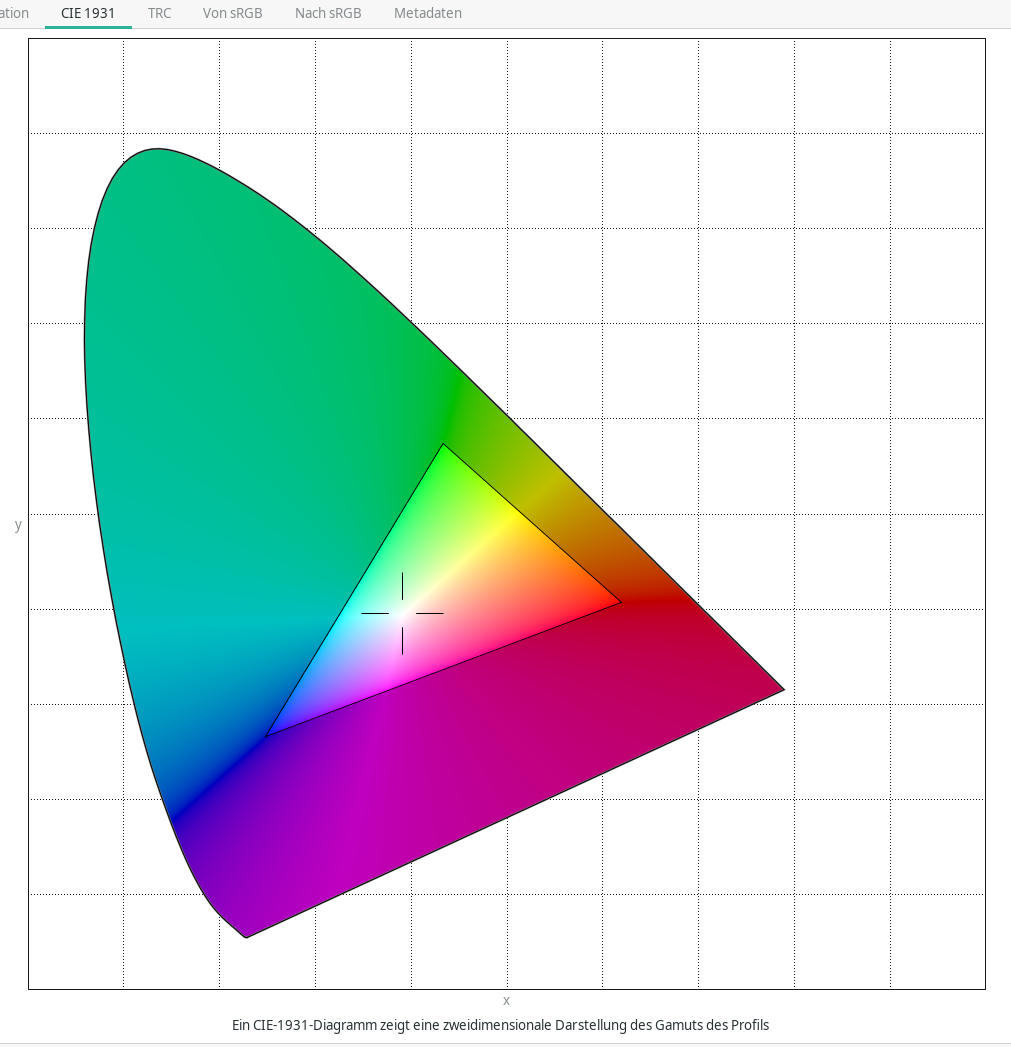
I can watch the profiles character in “gcm-viewer” and see its gamut…

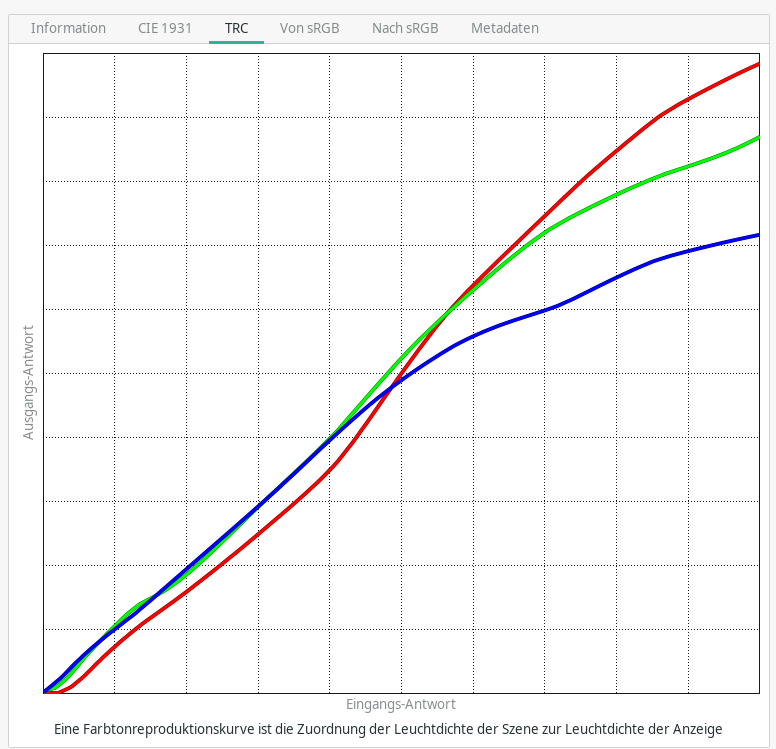
and also the three color reproduction curves.

The ICC profile seems to be OK so far.
But it does not work together with Turbo Print and it is not accepted by Manjaro’s system wide color management.

I am running Windows 7 in a VM, where also Adobe Creative Suite is installed. The ICC profile was accepted by Photoshop as a printer profile. I even could use it for softproofing (i.e. simulating the colors on the display just the way they would be printed on paper. No problems!

Then I thought, perhaps the ICC profile file is too large with 1,7 MB. So I generated a smaller one by Argyl, which now has about 450 kB. But this ICC profile behaves just like the big one.

I did not find any hint in the web and no one discusses similar problems. So any help is very welcome!

set icc v2 in Argyl

I have just checked by gcm-viewer. The “big” profile is version 2.2 and its whitepoint is 5.300K and not 6500K / D65.

But I have generated a new profile, using these flags:
colprof -v -a l -l 300 -L 100 -qh -o 1931_2 -i D65 -nc -A Canon -M Maxify-GX4050 -D 80g-Kopierpapier Kopierpapier-600dpi

It also is ICC v2 but its whitepoint is 7.300K and not D65. This is crazy!

Further even this profile is not accepted by Manjaro’s system wide color management.

I have seen, that any ICC profile, generated with more precision than default (like high or ultra) will result in the following error messages at the end of profile calculation:

...
Done A to B table creation
Setting up B to A table lookup
Creating B to A tables
Rev cache RAM = 12965 Mbytes
Initializing nnrev arrays...
There is 1 rev cache instance with 12965 Mbytes limit
nnrev initialization done
Initializing nnrev arrays...
There are 2 rev cache instances with 6482 Mbytes limit
nnrev initialization done
100%
Done B to A tables
Creating gamut boundary table
100%
Done gamut boundary table
Profile check complete, peak err = 1.557101, avg err = 0.427967, RMS = 0.492628

I have 32 GB RAM on my machine and there should be no limitation.

Just tried again without D65 and without observer etc and default quality by using these flags:
colprof -v -l 300 -L 100 -A Canon -M Maxify-GX4050 -D 80g-Kopierpapier Kopierpapier-600dpi

I get a profile ICC v2.2 with 5300 K which should work well. It is strange, that Argyl does not create ICC v4 profiles by default. The flag -a l seems to do nothing in my case and the flag -i D65 seems to put whitepoint to 7300 K.

KI told me, to use flag -v4 to enforce Argyl to create V4 version profiles. Strange, because -v flag stands for “verbose”. I tried it anyway and I got also a v2.2 profile. At least gcm-viewer tells me so.
Perhaps gcm-viewer tells lies about the profile version???

Concerning the “rev cache error”, the KI told me:

The message “There is 1 rev cache instance with 12965 Mbytes limit” is informational and not an error. It indicates that ArgyllCMS is using a reverse lookup cache of approximately 12.9 GB to speed up the creation of B2A (backward) tables during profile generation.

This cache is used to optimize performance when calculating color transformations, particularly in complex profiling tasks. The size is typically set to about half of your system’s available RAM , and the value you see (12965 MB) reflects that default behavior.

If you encounter performance issues or errors like “Reverse Cell Cache exhausted, processing in chunks” or “Not enough memory to process in chunks” , consider adjusting the cache size using the environment variable ARGYLL_REV_CACHE_MULT :

  • To reduce memory usage (if you’re experiencing swapping or slowdowns), set it to a value less than 1.0 (e.g., ARGYLL_REV_CACHE_MULT=0.5 ).
  • To increase cache size (if you have ample RAM and want faster processing), set it to a value greater than 1.0 (e.g., ARGYLL_REV_CACHE_MULT=1.5 ), but avoid values too close to 2.0 to prevent disk swapping.

So this is not a problem or a bug!

But my intentional problem still remains unsolved. Any ideas here?

This issue is way beyond my knowledge, so I may be totally off-key so feel free to ignore.

In Manjaro-Settings-Manager, under Xfce, in “Color Profiles” can you add the profile that you created to the selected printer?

Thank you for your open speaking. And yes, things seem to be very complex in Linux, when interaction between icc profiles, ppd files and additionally commercial software like TurboPrint should work together.

Your question: No I cannot add the profile to my printer (CUPS driverless printer version). I can select the profile, then click “add”, then the list of added profiles remains empty and no error message shows up.

Meanwhile I have found the Argyl tool iccdump, which allows an inspection in the profile. I could not detect something strange in the profile I have built. Using iccdump I also have compared it to another ICC profile, I had built in 2013 with basICColor print3c (a Windows program) and there are no differences in their structure or the amount of tags etc. Both profiles are ICC v2.2 or v2.0.

Then I have tried to add this profile to Manjaro Color Settings-Manager and this profile also was not accepted!

There are default ICC profiles which come preinstalled in /usr/share/color/colord/ All these profiles are selectable in Manjaro Color Manager Settings. So I took FOGRA27L_coated.icc and inspected it by iccdump. No differences in structure or tags but it is a LAB to CMYK profile and my profiles are of course LAB to RGB profiles.

If I resume all these informations, I set up the following assumptions:

  1. TurboPrint does accept profiles only, which can be loaded in Manjaro color settings manager.
    —> maybe? But if so, what causes this???

  2. Manjaro Color settings manager does not accept to bind RGB printers to RGB profiles
    —> this would be very strange as this is the most common situation in home offices = I don’t think so

  3. TurboPrint does accept only profiles, which are generated and bought from ZEDOnet
    —> they would destroy their business by such a manipulation = I don’t think so.

I have to say this topic is out of my comfort zone. :woozy_face:
From some reading.

Please run this and paste the output here:

iccdump -i /path/to/your_profile.icc | egrep -i "profile/device class|data color space|profile connection space|profile version"

See what the driver exposes via CUPS:

lpoptions -p your_printer -l | egrep -i "color|colormodel"

See what colord thinks about the printer:

colormgr get-devices colormgr get-device /org/freedesktop/ColorManager/devices/XX

What we looking for:

  • profile/device class — should be “prtr” for a printer profile (if it’s “mntr” it’s a monitor profile).
  • data color space — shows RGB or CMYK.

What to expect:

  • profile/device class: prtr (good for printers) or mntr (monitor → not suitable)
  • data color space: RGB or CMYK — this must match what the driver/printer advertises

The iccdump header and the colormgr or lpoptions output will tell you whether you have a prtr+RGB, prtr+CMYK, or an mntr profile.

1 Like

Your first request was not answered in the terminal, even when I used grep -E. I checked the profile with iccdump alone and I put the first lines here, in order to answer your question:
eader:

  Profile size    = 555220 bytes
  CMM             = 'argl'
  Version         = 2.2.0
  Device Class    = Output
  Color Space     = RGB
  Conn. Space     = Lab
  UTC Date&Time   = 15 Feb 2026, 0:51:32
  Local Date&Time = 15 Feb 2026, 1:51:32
  Platform        = *nix
  Flags           = Not Embedded Profile, Use anywhere
  Dev. Mnfctr.    = 0x0
  Dev. Model      = 0x0
  Dev. Attrbts    = Reflective, Glossy, Positive, Color
  Rndrng Intnt    = Relative Colorimetric
  Illuminant      = 0.96420288, 1.00000000, 0.82490540    [Lab 100.000000, 0.000000, 0.000000]
  Creator         = 'argl'

To answer your second request:

lpoptions -p GX4000series-TurboPrint -l | grep -E -i "color|colormodel"
InkType/Modul: *Color_1
ColorModel/Farbmodus: Black Gray GrayPhoto *RGB CMYKproof CMYKproof2
zedoColorspace/RGB-Farbraum: 5 *0 1 2 3 4 6
zedoIntent/Farbwiedergabe-Ziel: none_0 *perception_0 perception-wide_1 perception-inksave_1 saturation_1 colorimetric-absolute_1 colorimetric-relative_1 colorimetric-relativebpc_1
zedoCartridgeColors/zedoCartridgeColors: *CartridgeColors

your third request:

Object Path:   /org/freedesktop/ColorManager/devices/cups_GX4000series_TurboPrint
Owner:         root
Created:       Februar 15 2026, 01:58:54 PM
Modified:      Februar 15 2026, 01:59:33 PM
Type:          printer
Enabled:       Yes
Embedded:      No
Model:         Canon-MAXIFY-GX4000series TurboPrint
Vendor:        CANON TurboPrint
Serial:        file:///dev/null
Format:        ColorModel.MediaType.Resolution
Scope:         temp
Colorspace:    rgb
Device ID:     cups-GX4000series-TurboPrint
Profile 1:     icc-00b2474bea773ec09fb9c915b0aac26a
               /usr/share/color/icc/Kopierpapier-600dpi.icc

But I have to explain, that I had deleted the TurboPrint printer within TurboPrint software and then - after having checked that CUPS was clean in its web administration - I renewed this printer in TurboPrint again.
I have not seen, that TurboPrint did “remember”, that there had been a connection to my printer profile from before and immediately connected this profile within TurboPrint to my printer.

As I was not aware of this renewed profile connection, I tried to connect my profile in the Manjaro color settings to the GX4000series-TurboPrint printer. And WOW, it did connect my profile now.

Next conclusion is, that it seems, that it is impossible to assign a ICC profile to a printer of the kind “CUPS driverless” (which I tried without success).

When I saw, that the profile setting within TurboPrint was renewed automatically by TurboPrint, I tried to print the simple TurboPrint test sheet. And YES, it was printed. BUT:
When the print finished, the spooler stayed in the status “waiting for finishing”. And there it stays. But there is nothing in the spooler pipeline.
Inspite of that fact, I started a regular printing of a document. In the print dialog, I could see the printer profile attached. (The first time, I saw this!) And it was printed… but with bad color reproduction. Perhaps the printer profile is now applied twice??? It is active in the TurboPrint software and additionally in the Manjaro color settings.

After having printed the document, the spooler was OK. I removed the profile from Manjaro color settings, as it makes sense, that the TurboPrint software will manage the profile itself. Then I printed this document again and successfully finished the print.
But the colors remain bad. The print is blueish and it is too dark in the shadows. In comparison with the prints, I get from CUPS driverless, the latter are far more like the original. For a more realistic visual comparison, I have an offset print from the same document.

In result, I cannot resume, what has caused the problems!

But I can resume now:
It is not possible, to attach a profile to a CUPS driverless printer. May be it is possible, when I would install the printer with Gutenprint or Foomatic.

It seems, that TurboPrint had a problem and it seems to be corrected by simply deleting the malfunctioning printer and renew it freshly.

I am wondering, why there is a blueish color cast and its too dark in the shadows, although I have created a profile using about 1.000 patches and measuring with my EyeOnePro.
When I am using this profile in my Windows 7 / Photoshop running in a VM, I can set Photoshop to Softproof and the result is very realistic.

Problem solved??? – I’m not sure. Too many things uncleared. Maybe I will have to add something in this thread…

@musdus Thank you for your very engaged and qualified answer!
1 Like

Hi Jaqueline,

Thanks for your detailed updates. Here are a few focused suggestions to help address the blueish cast and dark shadows:

You addressed double installed profiles…

  1. Disable colord for the printer:
    To prevent potential double profiling, remove the printer from colord’s management with:
colormgr delete-device /org/freedesktop/ColorManager/devices/cups_GX4000series_TurboPrint

This ensures TurboPrint is the only system applying the profile.

  1. Test with Gutenprint or Foomatic:
    Since CUPS driverless printers don’t accept custom profiles, try installing the printer using Gutenprint or Foomatic (via the CUPS web interface). This might allow better profile integration.

  2. Refine the profile:
    Recreate the profile with ArgyllCMS, ensuring high accuracy (e.g., using the -i** flag). Testing with a standard profile (e.g., sRGB) could help determine if the issue is specific to the custom profile or the printer/driver.

These steps should help isolate the issue. Good luck, and feel free to share any updates!

1 Like

Oh thank you for so many valuable ideas!

at 1. I have not done this til now. And I am not sure, whether I will try it, because I do not know, at what location what files would be deleted. For example: In /etc/cups/ppd/ there are the ppd files for each of my printers and it would not be a good idea, to remove any of them.

at 2. There is neither Gutenprint nor Foomatic driver available for Canon Maxify GX printers. But I have tried the original Canon driver, which actually comes in version 6.5
Without any additional ICC profile, the color reproduction is very similar to that of CUPS driverless.

But this driver allows to connect it with a profile in the Manjaro color manager. The print dialog of applications show that this profile is active, but there are no additional settings available. The color reproduction in this case is much worse than with CUPS driverless.

at 3. I have found what caused the blueish color shift: In the printing dialog of the applications, there is a list of settings, which can easily be misunderstood:

At top you can choose sRGB or Apple RGB etc. which is assigning the selected profile as a source profile to the object you want to print. That is silly, because most images and many PDF contain already contain a profile which describes their gamut. This profile is ignored and overwritten by this selection! – This is opposite to the idea of color management workflow!

At the second position, you can select a second profile, which is by default a CMYK profile. It always shows “Euro” in the selection list. This setting will result in something like a proof print, as the printed output will look like it would be printed with offset euroscale colors. This is the source of my blueish color shift. When I select “ISO ctd ECI v2”, then my colors are OK. “ISO ctd ECI” is the most used offset profile for coated offset paper.
But it is not possible to select an RGB profile, for example that, what I have created for my printer. If this would be possible, then no additional color transformation would happen. But actually, when making the best choice of what is available (=ISO ctd), then you will get your color transformed twice and in worst case, the offest gamut will limit some colors, which would be reproducible well by the inkjet printer!

At the third position of the color settings in the printing dialog, you find “rendering intent” (but I don’t know, whether my backward translation of this term from German is correct. By this setting, you can choose between perceptive or relative colorimetric or realtive colorimetric with blackpoint correction or absolute colorimetric. The other options are unknown to me and I think, they do not follow the international color management standards.
Remarkable is the setting “no correction - printing profiling charts”. When I choose this, I would assume, that then the CMYK profile from list position 2 setting will be circumvented. That’s right, but additionally, the source profile of position 1 is also disabled. As a result, when printing with TurboPrint and the active profile in it, then there is no source profile which can be calculated with the TurboPrint profile and the result is a very light print, which makes no sense.
This setting should be available as a checkbox, because it makes sense and is absolutely necessary, when printing color charts for profiling. But it has nothing to do with a rendering intent!

I resume:

  1. A good color reproduction is achievable only by additional applications like TurboPrint. This app builds a unit, which connects a CUPS-managed printer with several profiles, which are selected automatically dependend from paper selection in the printing dialog.
    I could not find the cause, why TurboPrint was blocking any printing at first and I had to delete the printer, I had set up in TurboPrint and had to renew it.

  2. It is possible, to bind a color profile in Manjaro color settings to a certain printer. But then this combination is valid for one paper quality only. Further it seems, that even when accepting this limitation, the resulting color reproduction is not acceptable for reasons, I don’t know.

  3. The settings in the printing dialog of all apps, which can print, leads to misunderstandings, erroneous settings and frustrating results on both actions: printing profiling charts and printing from TurboPrint.

  4. Colormanagement in Linux seems to be much improved within the last years. But there is still a lot to do! - And it is a pitty, that it is necessary to buy a commercial license annually, when you want to print with good color reproduction.

  5. Little additional hint:
    If you have selected sRGB in the printing dialog / color as source profile and your print looks too dark, you can try to print, while selecting Apple RGB instead of sRGB. This will result in a change of the Gamma value from 2.2 to 1.8 but it will not cause a color shift, as the gamut of both profiles is identical.

1 Like

Does your printer offer a web interface for color configuration (take a look at the printer manual and/or try http[s]://ip-addr-of-printer:631/ )?

Maybe that some printer drivers, when installed via CUPS will allow these settings. Both drivers from my printer (CUPS driverless and Canon v6.5) don’t have this feature.

CUPS and Canon driver seem to have the same internal colormanagement / ICC-profiling which will replace colours too early just from the midtones to the darkest parts. Whil this isn’t possible at CUPS driverless, I can assign a ICC profile to the Canon driver in Manjaro color manager. But this doesn’t make sense, because the poor results from the Canon driver will keep the limit.

In result, there is no other way than TurboPrint.

Does this mean you have a solution? Or are you still looking for support?

Oh sorry, that I didn’t answer any more. Yes, TurboPrint is the only solution for me (and my be in general). I am no longer looking for support and this thread can be closed now.

I thank all the good engaged people, who tried to help me with this!

1 Like