I was thinking about creating a small tutorial for Wayland users to get Firefox and Thunderbird to fully use Wayland. Among other things for KDE use how to integrate Firefox almost in KDE. Both programs run absolutely stable under KDE.
So we start simple. This is more for advanced users.
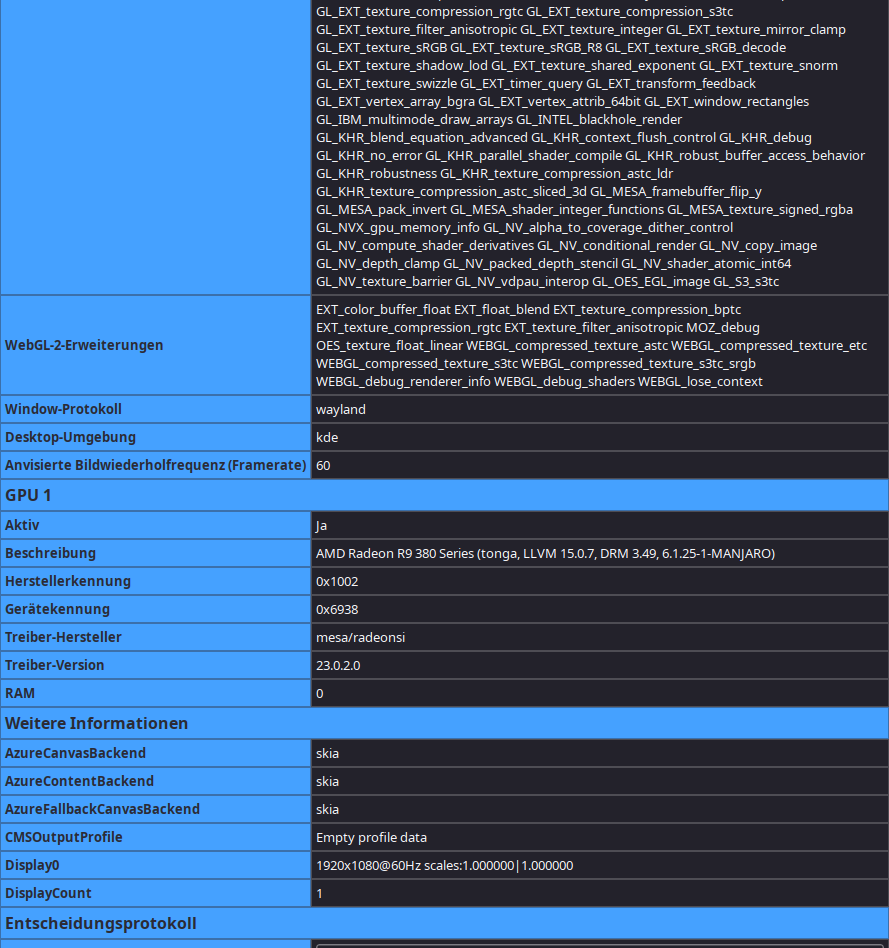
In Firefox, type about:support to see what mode Firefox is running in. Scroll down until you find Window-Protokoll. Most of them should say Xwayland.
If you have Wayland as default, we first set the environment variable with any text editor as follows:
You have the normal KDE windows in front of your eyes again. Also taken from the Arch Wiki: Firefox - ArchWiki
So since I switched Firefox and Thunbderbird to Wayland, these two programs run really stable and smooth. Even web pages load much much faster. I was amazed myself what such settings can do. I wish a lot of fun trying and testing, and a nice weekend to you all.
If I do that using an UHD monitor, resolution of 3840 x 2160 AND scaling 150%,
the last window size is not saved in GNOME, except for the maximum window size.
It defaults to something smaller…
I don’t know, I don’t use Gnome. However, it works fine under KDE. I have read somewhere that set variables sometimes cause difficulties in Gnome etc… But there each computer is different from its configuration. I have linked to an Arch Wiki article. Normally this should work much better under Gnome, because Wayland is much more mature there than on KDE. But I have to say that I use a normal 1080p monitor.
The reason is: scree-scaling to 150%
The solution is: ==> about:config ==> widget.wayland.fractional_buffer_scale set to 1.0
That works.
EDIT:
Warning: do not set widget.wayland.fractional_buffer_scale less than 1.0 ==> FF menues freeze.
A value of 1.5 or more – FF menues freeze…
Ensure WebRender is enabled by navigating to about:support and verifying the Compositing value is “WebRender”. It is enabled by default in GNOME and other desktop environments.
Ensure you are not running “Software WebRender” as that will not work as of August 2021.
If necessary, Hardware WebRender can be force enabled by setting gfx.webrender.all to true.
Set media.ffmpeg.vaapi.enabled to true in about:config
Run Firefox with MOZ_DRM_DEVICE environment variable set to your preferred rendering device. (Available devices can be listed with stat /dev/dri/*).
To achieve the last env vars copy the firefox.desktop file from /usr/share/applications to ~/.local/share/applications and edit each exec line (there are 3) like
Following these steps allowed me to solve an issue I had, in which my Firefox couldn’t start WebGL.
It gave me the
WebGL creation failed: WebglAllowWindowsNativeGl:false restricts context creation on this system. () Exhausted GL driver options. (FEATURE_FAILURE_WEBGL_EXHAUSTED_DRIVERS)
error in about:support in Firefox.
Basically my Firefox was running under X11 despite me always using Wayland everywhere. The GPU devices weren’t showing in that list either. Now everything seems to be working great.
Is it to keep the system files clean?
Doesn’t the global env variable survive even if Firefox gets uninstalled and reinstalled later, as an advantage?
It is generally best practice to make changes to only what is needed.
Even though /etc/environment is tied to logins, and it’s a variable very unlikely to be reused anywhere else, and the chances of breaking things are slim to none.. It’ll work fine, right?
@cscs’s way doesn’t even make it so it applied to your user, it’s only used for when you launch Firefox. The only time you need it!
Being consistent with user changes vs system changes, is a good habit to get into. This one is even more narrow than a user change, it’s just an application config change basically. It’s perfect.
When troubleshooting certain things, you have the option to test a new user. It’s nice to not have all your customisations applied to new users.
No. You will still have the icon, with the variable in it. (Stored in: ~/.local/share/applications)