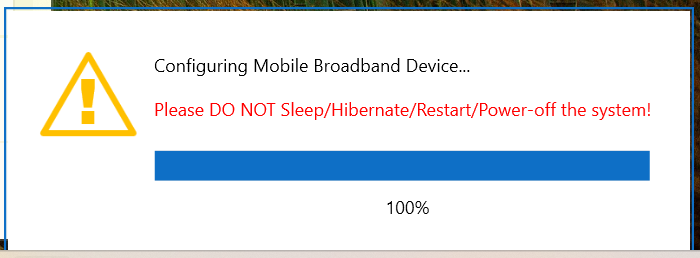
How can I get Fibicom L850-GL modem to work

Unpack the “.zip” file!

Enter the newly created folder (fibocom-firmware-switch)!

Then open a console/terminal, and run the following commands:

makepkg -C
makepkg -si

This will register the files, folders + a couple of dependent programs!

It will ask if the build is already built, do you want to rebuild it? (Y/N)
Choose yes!

In rare cases, you might run into small issues with installing dependencies:
e.g.:

  • during zenity installation…

in that case:

killall pamac-daemon
killall pamac-tray-plasma

then try again:

sudo pacman -S zenity

The actual software installation is important (at least that’s what the “experts” claim, but I personally skipped the following 3 commands along with their checks!):

CRITICAL STEP (DO NOT SKIP)

sudo systemctl stop ModemManager

otherwise:

  • it will grab the modem
  • flashing won’t work

check:

sudo systemctl stop ModemManager
systemctl is-active ModemManager

The correct answer should be:

“inactive”

Now go here:

~/~/~/fibocom-firmware-switch/pkg/fibocom-firmware-switch/

And run these commands:

cd /opt/fibocom
./UpgradeWithProgress.sh FwPackage/Generic_cust.001.006_signed.fls

So yeah, I got stuck here because I still couldn’t get the originally installed Debian driver version.

I only have the installer, which I “converted” to Manjaro in about 4–6 hours, but honestly it doesn’t help much, because it tries to download the Debian version, which is obviously not compatible by default… :confused:

So yeah, I’d need the installed version of the package from Debian.
If anyone can get it, please message me!
In the meantime, I’ll try other.

Don’t be mad that I’m progressing this slowly, but I can’t even see out from the work…

EDIT:
Package has been corrected!
“UpgradeWithProgress.sh” fixed.

set_show_progress_env()
{
    if [ -z "$DISPLAY" ]; then
        export DISPLAY=:0
    fi
}

It didn’t improve performance significantly… but it’s better than nothing

I think the main issue is the combination of AMD and Fibocom L850 - at least that is what I see when searching.

The modem must be switched to USB mode - and from the Arch Linux wiki - this appears to be disabled on AMD based hardware.

Perhaps this will work for you?

There is links for getting the firmware from lenovo’s download location.

AUR (en) - thinkpad-l860-gl-fcc-unlock-bin
https://download.lenovo.com/pccbbs/mobiles/n3xwp04w.txt

Unfortunately, this workaround didn’t help either…
For now, I’ll just wait and think about what to try next.
One thing’s for sure: I’m not going to install Debian just to extract the files I need.
It would probably just cause problems anyway, since I’d end up mixing up commands later, which definitely wouldn’t be good for me… :confused:

I’ll try to refine this “raw” driver, since it clearly still needs some work.
But I only have about 30 minutes to an hour on weekends, because during the week I’m completely swamped with things to do.

I’ll let you know if I make any progress!
If anyone could also take a look at it, edit it, etc., I’d really appreciate it.

I’m still looking for an installed Debian-based version of the package, because if I could reverse it, I’d know exactly what and where I need to change things.
(And yeah, I’ll also try searching on Debian forums, maybe someone already has this package installed.)

This is the base installer (package).:

OK
Now it all makes sense!

Modem upgrade failed: ModemUpgrade timeout

This means:

  1. the flasher started
  2. communication was attempted
    -3. the modem didn’t respond in time
    -4. Debian USB flasher → PCIe modem

this:
WON’T work like this

DownloadTool → no target → timeout

5.Alright — then we’re going with the hardcore native Linux solution.
6.I’m building a Linux-only firmware flasher system!

I’ve still got about a month and a half left anyway. :smiley:

You don’t have to.

You can use

ar x debian-package.deb

Then you have the archives

tar -x data.tar.xz

You will also be able to peek into the scripts that are run by the debian installer when the package is installed.

But I’m doing 7zip x filename.
Then comes the adaptation. :slight_smile:
Good news that the Debian people helped too :slight_smile:

https://forums.debian.net/viewtopic.php?p=841718#p841718

I looked up a second hand Thinkpad T495) which is an AMD based system similar to your x395.

I have managed to make it work - upon request - I can also provide a set of packages ready to install.

Research

During my research, I made several mistakes and I found several hints which in the end made it possible.

  • Make sure you have disabled the pin on your sim card before you attempt to update and activate the modem.

  • My biggest mistake was to wipe Windows from the system - bad idea - as Windows is instrumental in getting the modem up-to-date and functional.

  • Another mistake I made was to use pamac to build the custom packages. Instead I had to use the native Arch Linux method.

I will also recommend using linux70 (remove udev-usb-sync), as this will make wonders because of the kernels improvements with relation to these generations of AMD APUs.

It may be possible to execute the Windows configuration tasks below by using a Hirens BootCD - but that I have not tested.

How To Lenovo Fibocom L850-GL using Manjaro Linux

If your Fibocom modem’s firmware release is version 2.0.1.103 then you can proceed to building the custom modem manager packages.

  1. Boot to Windows
  2. Download and install the lastest driver package (includes new firmware) from Lenovo download site
  3. Run Windows update
  4. Reboot into Windows (Be sure to let the firmware upload finish uninterrupted)
  5. Connect to the internet
  6. While connected - Click Start → Power → Restart (This ensures the modem is functional when you reboot into Manjaro)
  7. Boot into your Manjaro installation

Manjaro Linux modem setup and configuration

Using a clean Manjaro Linux dual-boot installation.

You need to replace ModemManager with the development version.

:warning: If get other system issues - make sure to mention you are using a development version of ModemManager.

The development version contains the required functionality, a fibocom module and a fcc-unlock script. The development version depends on other development libraries which will replace existing system libraries with development versions.

The package fwupd depends on libmbin which will create a conflict, a conflict you can only resolve by removing fwupd package.

To ensure no interference - stop and disable the installed ModemManager

sudo systemctl disable --now ModemManager

Uninstall the modemmanager package

sudo pacman -Rns modemmanager

If installed remove the fwupd package

sudo pacman -Rns fwupd

Create a work folder

WORK=~/fibocom
mkdir $WORK
cd $WORK

Then we need three custom scripts - source AUR - the build order is important - do not use an AUR helper

Install base-devel

sudo pacman -Syu base-devel git --needed
git clone https://aur.archlinux.org/libmbin-dev
cd libmbin-dev
PKGDEST=$WORK makepkg -sicC
cd $WORK
git clone https://aur.archlinux.org/libqmi-dev
cd libqmi-dev
PKGDEST=$WORK makepkg -sicC
cd $WORK
cd $WORK
git clone https://aur.archlinux.org/modemmanager-dev
cd modemmanager-dev
PKGDEST=$WORK makepkg -sicC
cd $WORK

You should expect 4 packages in the work folder

ls -l *.pkg.tar.zst 
-rw-r--r-- 1 nix nix  629403 12 apr 17:27 libmbim-dev-1:1.33.1_dev-1-x86_64.pkg.tar.zst
-rw-r--r-- 1 nix nix  802096 12 apr 17:34 libmm-glib-dev-1.25.95_dev-1-x86_64.pkg.tar.zst
-rw-r--r-- 1 nix nix 2736562 12 apr 17:28 libqmi-dev-1.37.995_dev-1-x86_64.pkg.tar.zst
-rw-r--r-- 1 nix nix 1544114 12 apr 17:34 modemmanager-dev-1.25.95_dev-1-x86_64.pkg.tar.zst

Verify that all packages has been installed before proceeding - check the /var/log/pacman.log - when all is done symlink the fcc-unlock script

sudo ln -s /usr/share/ModemManager/fcc-unlock.available.d/8086:7360 /etc/ModemManager/fcc-unlock.d/8086:7360

Enable and start the ModemManager service

sudo systemctl enable --now ModemManager

Result

inxi -Fc0
 $ inxi -Fc0 
System:
  Host: tp485 Kernel: 7.0.0-rc7-1-MANJARO arch: x86_64 bits: 64
  Desktop: KDE Plasma v: 6.6.4 Distro: Manjaro Linux
Machine:
  Type: Laptop System: LENOVO product: 20NKS05100 v: ThinkPad T495
    serial: <superuser required>
  Mobo: LENOVO model: 20NKS05100 v: SDK0J40697 WIN
    serial: <superuser required> Firmware: UEFI vendor: LENOVO
    v: R12ET64P(1.34 ) date: 02/23/2024
Battery:
  ID-1: BAT0 charge: 50.2 Wh (99.5%) condition: 50.5/50.5 Wh (100%)
CPU:
  Info: quad core model: AMD Ryzen 5 PRO 3500U w/ Radeon Vega Mobile Gfx
    bits: 64 type: MT MCP cache: L2: 2 MiB
  Speed (MHz): avg: 1230 min/max: 1400/2100 cores: 1: 1230 2: 1230 3: 1230
    4: 1230 5: 1230 6: 1230 7: 1230 8: 1230
Graphics:
  Device-1: Advanced Micro Devices [AMD/ATI] Picasso/Raven 2 [Radeon Vega
    Series / Radeon Mobile Series] driver: amdgpu v: kernel
  Device-2: Chicony Integrated Camera (1280x720@30) driver: uvcvideo
    type: USB
  Display: wayland server: X.org v: 1.21.1.21 with: Xwayland v: 24.1.9
    compositor: kwin_wayland driver: X: loaded: amdgpu unloaded: modesetting
    dri: radeonsi gpu: amdgpu resolution: 1920x1080~60Hz
  API: EGL v: 1.5 drivers: kms_swrast,radeonsi,swrast
    platforms: gbm,wayland,x11,surfaceless,device
  API: OpenGL v: 4.6 compat-v: 4.5 vendor: amd mesa v: 26.0.4-arch1.1
    renderer: AMD Radeon Vega 8 Graphics (radeonsi raven ACO DRM 3.64
    8.0.0-rc7-1-MANJARO)
  API: Vulkan v: 1.4.341 drivers: radv surfaces: N/A
  Info: Tools: api: clinfo, eglinfo, glxinfo, vulkaninfo
    de: kscreen-console,kscreen-doctor wl: wayland-info x11: xdpyinfo,xprop
Audio:
  Device-1: Advanced Micro Devices [AMD/ATI] Raven/Raven2/Fenghuang HDMI/DP
    Audio driver: snd_hda_intel
  Device-2: Advanced Micro Devices [AMD] Audio Coprocessor
    driver: snd_pci_acp3x
  Device-3: Advanced Micro Devices [AMD] Ryzen HD Audio
    driver: snd_hda_intel
  API: ALSA v: k7.0.0-rc7-1-MANJARO status: kernel-api
  Server-1: PipeWire v: 1.6.3 status: active
Network:
  Device-1: Intel Wi-Fi 5 Wireless-AC 9x6x [Thunder Peak] driver: iwlwifi
  IF: wlp1s0 state: down mac: d6:76:65:90:09:5c
  Device-2: Realtek RTL8111/8168/8211/8411 PCI Express Gigabit Ethernet
    driver: r8169
  IF: enp3s0f0 state: down mac: f8:75:a4:30:8f:b7
  Device-3: Realtek RTL8111/8168/8211/8411 PCI Express Gigabit Ethernet
    driver: r8169
  IF: enp5s0 state: down mac: f8:75:a4:30:8f:b6
  IF-ID-1: wwan0 state: unknown mac: N/A
Bluetooth:
  Device-1: Intel Wireless-AC 9260 Bluetooth Adapter driver: btusb type: USB
  Report: rfkill ID: hci0 state: up address: see --recommends
Drives:
  Local Storage: total: 476.94 GiB used: 38.2 GiB (8.0%)
  ID-1: /dev/nvme0n1 vendor: SK Hynix model: BC901 HFS512GEJ9X108N
    size: 476.94 GiB
Partition:
  ID-1: / size: 97.59 GiB used: 38.03 GiB (39.0%) fs: xfs dev: /dev/nvme0n1p4
  ID-2: /boot size: 3.86 GiB used: 147.7 MiB (3.7%) fs: ext4
    dev: /dev/nvme0n1p2
  ID-3: /boot/efi size: 299.4 MiB used: 32.6 MiB (10.9%) fs: vfat
    dev: /dev/nvme0n1p1
Swap:
  Alert: No swap data was found.
Sensors:
  System Temperatures: cpu: 60.0 C mobo: N/A gpu: amdgpu temp: 59.0 C
  Fan Speeds (rpm): fan-1: 0 fan-2: 0
Info:
  Memory: total: 16 GiB note: est. available: 13.53 GiB used: 2.97 GiB (22.0%)
  Processes: 278 Uptime: 34m Shell: Zsh inxi: 3.3.40

lspci -nn | grep 8086:7360
 $ lspci -nn | grep 8086:7360
04:00.0 Cellular controller/modem [0d40]: Intel Corporation XMM7360 LTE Advanced Modem [8086:7360] (rev 01)
nmcli -m 0
 $ mmcli -m 0
  ----------------------------------
  General  |                   path: /org/freedesktop/ModemManager1/Modem/0
           |              device id: b776b707c73cf296b6228e1f1aa09ba6436100e4
  ----------------------------------
  Hardware |           manufacturer: Fibocom
           |                  model: L850 LTE Module","L850
           |      firmware revision: 18500.5001.00.04.26.22
           |              supported: gsm-umts, lte
           |                current: gsm-umts, lte
           |           equipment id: 015550001546651
  ----------------------------------
  System   |                 device: /sys/devices/pci0000:00/0000:00:01.5/0000:04:00.0
           |                physdev: /sys/devices/pci0000:00/0000:00:01.5/0000:04:00.0
           |                drivers: iosm
           |                 plugin: Intel
           |           primary port: wwan0at1
           |                  ports: wwan0 (net), wwan0at1 (at), wwan0xmmrpc0 (xmmrpc)
  ----------------------------------
  Status   |         unlock retries: sim-pin (3), sim-puk (10), sim-pin2 (3)
           |                  state: connected
           |            power state: on
           |            access tech: lte
           |         signal quality: 9% (recent)
  ----------------------------------
  Modes    |              supported: allowed: 3g; preferred: none
           |                         allowed: 4g; preferred: none
           |                         allowed: 3g, 4g; preferred: none
           |                         allowed: 3g, 4g; preferred: 3g
           |                         allowed: 3g, 4g; preferred: 4g
           |                current: allowed: 3g, 4g; preferred: 4g
  ----------------------------------
  Bands    |              supported: utran-1, utran-4, utran-5, utran-8, utran-2, eutran-1, 
           |                         eutran-2, eutran-3, eutran-4, eutran-5, eutran-7, eutran-8, 
           |                         eutran-12, eutran-13, eutran-17, eutran-18, eutran-19, eutran-20, 
           |                         eutran-26, eutran-28, eutran-29, eutran-30, eutran-41, eutran-66
           |                current: utran-1, utran-4, utran-5, utran-8, utran-2, eutran-1, 
           |                         eutran-2, eutran-3, eutran-4, eutran-5, eutran-7, eutran-8, 
           |                         eutran-12, eutran-13, eutran-17, eutran-18, eutran-19, eutran-20, 
           |                         eutran-26, eutran-28, eutran-29, eutran-30, eutran-41, eutran-66
  ----------------------------------
  IP       |              supported: ipv4, ipv6, ipv4v6
  ----------------------------------
  3GPP     |                   imei: 015550001546651
           |            operator id: 23802
           |          operator name: Telenor DK
           |           registration: home
           |   packet service state: attached
  ----------------------------------
  3GPP EPS |   ue mode of operation: csps-2
           | initial bearer ip type: ipv4v6
  ----------------------------------
  SIM      |       primary sim path: /org/freedesktop/ModemManager1/SIM/0
  ----------------------------------
  Bearer   |                  paths: /org/freedesktop/ModemManager1/Bearer/0

ip a
 $ ip a
1: lo: <LOOPBACK,UP,LOWER_UP> mtu 65536 qdisc noqueue state UNKNOWN group default qlen 1000
    link/loopback 00:00:00:00:00:00 brd 00:00:00:00:00:00
    inet 127.0.0.1/8 scope host lo
       valid_lft forever preferred_lft forever
    inet6 ::1/128 scope host noprefixroute 
       valid_lft forever preferred_lft forever
2: wwan0: <POINTOPOINT,NOARP,UP,LOWER_UP> mtu 1500 qdisc fq_codel state UNKNOWN group default qlen 1000
    link/none 
    inet 10.181.147.199/0 brd 255.255.255.255 scope global noprefixroute wwan0
       valid_lft forever preferred_lft forever
3: enp3s0f0: <NO-CARRIER,BROADCAST,MULTICAST,UP> mtu 1500 qdisc fq_codel state DOWN group default qlen 1000
    link/ether f8:75:a4:30:8f:b7 brd ff:ff:ff:ff:ff:ff
    altname enxf875a4308fb7
4: enp5s0: <NO-CARRIER,BROADCAST,MULTICAST,UP> mtu 1500 qdisc fq_codel state DOWN group default qlen 1000
    link/ether f8:75:a4:30:8f:b6 brd ff:ff:ff:ff:ff:ff
    altname enxf875a4308fb6
5: wlp1s0: <NO-CARRIER,BROADCAST,MULTICAST,UP> mtu 1500 qdisc noqueue state DOWN group default qlen 1000
    link/ether 3e:16:02:f5:8b:db brd ff:ff:ff:ff:ff:ff permaddr 7c:b2:7d:c2:87:dd
    altname wlx7cb27dc287dd

4 Likes

Thanks for your help and your work — I really appreciate it. Feel free to send me the files (you can link them here or just PM me).

Right now I’m working on two “drivers” (only on weekends): one is visual (GUI), and the other is command-line based (CLI).

The packages are part of my custom repo

Make sure you remove all remnants of customized files - xmm7360 etc - as not doing may introduce weird errors or issues where you cannot make it work.

The T495 and X395 is essentially the same system in different sizes and weight class.

With the packages ModemManager will handle the modem which in turn integrates it in NetworkManager

Lenovo firmware package content.

I have extracted data from the Lenovo driver package and I have an untested theory that it might be possible to update the modem firmware using Hirens BootCD.

Extract the ManjaroLenovoFibocom.tar.gz archive.

Inside the archive is WWAN/20260904.06325587/ which contains the files used to setup the driver on Windows.

The folder WWAN/20260904.06325587/Source/FwUpdateDriver/ contains what I think may be a tool to update the modem firmware on Windows using a Windows PE to do the update.

EDIT: @Joco1992

Clarification

Windows PE can be used to execute a maintenance task on a computer system - e.g. firmware update - when the task requires a Windows environment to execute.

I understand, but that approach would be very difficult, since Windows is not open source. I once had the same idea of extracting it from a Windows system, but I couldn’t get it to work (I mentioned this in one of my earlier comments). I also had an experience where I had to downgrade a driver from Windows 10 to Windows 7, but despite all the hacks I tried, the driver just wouldn’t cooperate.

https://www.sevenforums.com/drivers/417907-windows-7-drivers-intel-wireless-ac-9260-a-4.html

I think we are talking past each other - what I mean is - Hirens BootCD is a Windows PE you can legally use to do rescue and recovery on Windows systems.

Having the content of the package, will allow you to - when booted to the Windows PE - environment - to execute a Windows firmware update tool - thus skip the need for creating a custom firmware upgrade tool.

EDIT: @Joco1992

Clarification

Windows PE can be used to execute a maintenance task on a computer system - e.g. firmware update - when the task requires a Windows environment to execute.

2 Likes

Why would it need to be open source for you to run software (a firmware updater) made for Windows?

Not the same idea.

Please re-read @linux-aarhus’s posts.

2 Likes

Thanks for editing it!

I get it now, it’s clear.

If I end up failing with this project, I might buy the Hiren’s Boot CD.

I’ve never used it, but AFAIK it’s free.

You can download it from the link below, just scroll down to the bottom and click on the filename. The site also has instructions for “burning” it to a USB drive.

2 Likes

No need to buy - Windows PE is a Microsoft Windows Deployment Tool - a limited Windows environment - and Hirens BootCD is a group of individuals which is providing a bundled ISO with various useful software for rescuing Windows Operating systems.

It is a very useful tool for tasks that requires a Windows environment for running Windows binaries.

"Windows PE is not a general-purpose operating system. It may not be used for any purpose other than deployment and recovery. It should not be used as a thin client or an embedded operating system. There are other Microsoft products, such as Windows Embedded CE, which may be used for these purposes.

To prevent its use as a production operating system, Windows PE automatically stops running the shell and restarts after 72 hours of continuous use. This period is not configurable."

Source: Windows PE (WinPE) | Microsoft Learn

Windows PE does not include any Windows license keys. Additionally, Hiren’s BootCD PE does not violate the purposes of Windows PE and it does not alter the “72 hours of continuous use” limitation. Therefore, using Windows PE in Hiren’s BootCD PE is legal according to Microsoft’s usage terms, in our opinion.

Frequently Asked Questions | Hiren's BootCD PE (Is Windows PE Legal To Use?)

And as a former Windows Certified Professional, I agree in their assessment, it is legal to use even for the purpose of doing a firmware update.

2 Likes

“I downloaded it, I booted from it, but it doesn’t even come close to Linux. By default, I had to navigate to Manjaro with Commander. I couldn’t even make it install a Windows program onto my Linux.

I thought about putting this Hiren’s Boot disk into VirtualBox and starting the penguin with it :slight_smile: so I could put a driver under it. Although I strongly doubt that this would be a working solution.

Of course, I also acknowledge the qualities of this Hiren’s Boot, and in my opinion it is surely worth gold on Windows 7, 8, 8.1, 10, 11 — just like my USBWindowsXP was back in the XP era.”

Which is not the purpose nor the intent of my mention - the intent and purpose is to update the firmware of the modem.

BUT Given your own statement (quote)

Your best option is redo your setup - that is what I ended up doing - time wasted - yeah - but the end result is a working modem - which I believe is what this is all about.

Backup your important data to a removable media.

Download the Windows 10/11 ISO from Microsoft (the win10 iso is only one which has an option for local account).

https://www.microsoft.com/en-us/software-download/windows10iso
https://www.microsoft.com/en-us/software-download/windows11

Wipe your disk and install Windows 10/11.

Insert a valid sim card (pin code removed)

Boot to Windows - Download and install this package (It is valid for T495(s) and X395).

https://download.lenovo.com/pccbbs/mobiles/r12fb17w.exe

Make sure you connect a charger during the process - because the modem firmware upgrade must not be interupted.

You will know when it happens - an warning message will be displayed when the firmware upgrade is in progress.

Run the installer to update your modem. When the firmware has been updated - activate the modem - that is connect to the internet.

Test the internet while on Windows - no wifi, no cable - just mobile broadband - you are good to go. Please be aware that you may need to reboot into Windows after installation of the modem package.

When you have the modem working - be sure to restart the system with the modem active (that is connected to the internet) - during the restart boot into the Manjaro ISO and install Manjaro.

Then follow the guide in comment #49 or jump to the How To

Whether you choose to wipe Windows or shrink the Windows as much as possible - that is entirely your call - I resized Windows 10 to 64G - with either choice - your goal of having a functional modem has been achieved.

Apple users which want to convert their system to run Linux will face similar issues, it is recommended to keep the Apple system on disk - helps with troubleshooting later on - same goes for a system like this - it has been created for Microsoft Windows - and as such it is better to keep the tools at hand - a minimal Windows installation at e.g. 64G.

2 Likes

Thank you my friend for your help, this problem can be considered solved.

I dare to continue working on a suitable driver.

I’ll send it to some people in private messages. if I can ask one more thing - to take the time to look at it and write a few lines about what the problem could be, what I didn’t pay attention to, I would be grateful for that triple!

EDIT: postscript:
Tomorrow I’ll also try the above-mentioned method in a real environment, and I’ll write down my experiences!

1 Like

There is another option - I don’t know it it will work on your system - it worked on my system - but I also used Windows to update the modem firmware.

I found another working solution - it has been created for debian based Linux but with some small modifications it will work for Manjaro as well.

GitHub - man0n0n0/fibocom-l850-linux: Complete Linux solution for Fibocom L850 (XMM7360) LTE modem with GUI applet · GitHub

I have forked the project and adjusted the install.sh script to match the folder structure of Manjaro Linux and I have tested it - it works.

The script masks ModemManager so it won’t interfere with the script.

The service initialising the modem will slow the initial start with ~60s.

The fork is GitHub - fhdk/fibocom-l850-linux: Friendly Fork of Linux solution for Fibocom L850 (XMM7360) LTE modem with GUI applet · GitHub

It is absolutely doable - but it requires some modifications if one wants to install it as proper package - but for the current purpose it will have to do.

Some things to do after clone

  • Run the install.sh script
  • Install libayatane-appindicator package - required for the tray indicator.
  • Install systemd-resolvconf package - required by the service
  • Enable systemd-resolved as resolver.
  • Edit the /etc/systemd/system/xmm7360.service to use the correct apn
 $ lte status
✓ LTE Modem is CONNECTED
  IP: 10.170.55.98
  Quality: Good ████▒quality...
  Latency: 62ms | Packet Loss: 0%
 $ lte logs
Showing live logs (Ctrl+C to exit)...
[sudo] password for nix: 
apr 20 13:32:10 nix-t495 xmm7360-daemon-full.py[532]: 2026-04-20 13:32:10,844 [INFO] Waiting for IP address...
apr 20 13:32:10 nix-t495 xmm7360-daemon-full.py[532]: 2026-04-20 13:32:10,845 [INFO] Attach allowed: 1
apr 20 13:32:10 nix-t495 xmm7360-daemon-full.py[532]: 2026-04-20 13:32:10,851 [INFO] IP address: 10.170.55.98
apr 20 13:32:10 nix-t495 xmm7360-daemon-full.py[532]: 2026-04-20 13:32:10,851 [INFO] DNS servers: 212.242.40.3
apr 20 13:32:10 nix-t495 xmm7360-daemon-full.py[532]: 2026-04-20 13:32:10,851 [INFO] Setting up data channel...
apr 20 13:32:10 nix-t495 xmm7360-daemon-full.py[532]: 2026-04-20 13:32:10,854 [INFO] Data channel established
apr 20 13:32:10 nix-t495 xmm7360-daemon-full.py[532]: 2026-04-20 13:32:10,854 [INFO] ✓ Modem connected successfully
apr 20 13:32:10 nix-t495 xmm7360-daemon-full.py[532]: 2026-04-20 13:32:10,854 [INFO]   IP: 10.170.55.98
apr 20 13:32:10 nix-t495 xmm7360-daemon-full.py[532]: 2026-04-20 13:32:10,854 [INFO]   DNS: 212.242.40.3
apr 20 13:33:08 nix-t495 systemd[1]: Started XMM7360 LTE Modem Connection Daemon.

1 Like