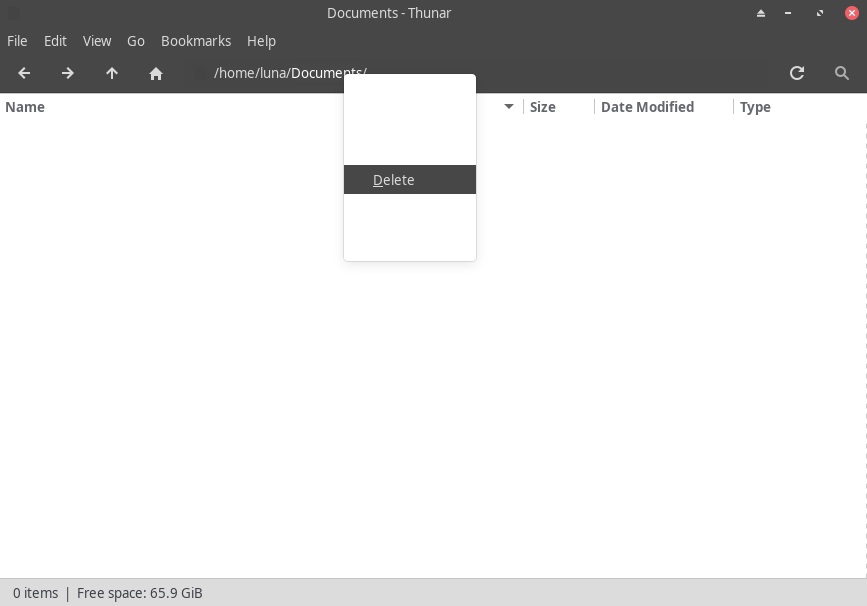
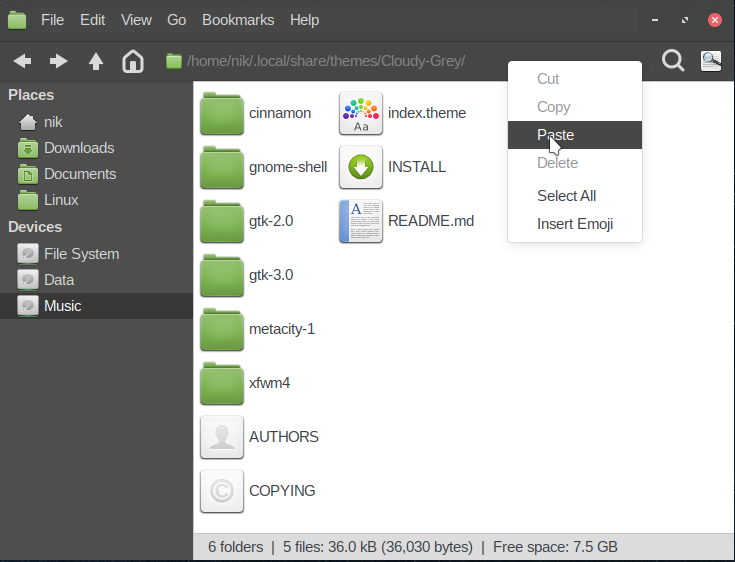
I have a UI issue in Thunar. When I right-click the URL field, I only get a blank box; but, if I pass the mouse pointer down the box, individuals items (such as cut, copy, paste, delete etc.) appear one at a time. Here’s a screenshot.
By the way, this problem is confined to the context menu for the URL field. If I right-click a file or folder, its context menu displays fine.
QUESTION: How can I fix it?
For background, it is possible that this problem actually happened in February, or at the same time I reported the problem in this post (and I only happen to notice it now):
If the two problems are related, the solution may look similar too. For example, it may be some other property (of the form @define-color [theme for background of menu from right-clicking the URL field]) entered into the config file.
By the way, has the “Create a new Topic” window changed? It used to fill my browser and have preview. Now it is a small box, magnifying the size causes the title and tag fields to disappear, and there is no preview.
I think the simplest solution will be to select a theme that is, well, not broken. Note that themes can depend on other themes, so breakage in one can affect others. Just start with some of the default themes. Like Matcha dark or similar.
Also check for themes installed in the local user folder ~/.themes
Thanks for that and for the code. Unfortunately, none of the @define-color lines worked.
Incidentally, I found that the problem from February (for which I had to use @define-color theme_unfocused_selected_bg_color #555555;) has now been fixed.
Undoubtedly true. Only, it’ll take me hours (somewhat finicky).
It takes me four or five clicks and just a few seconds to change the theme.
click on menu, click on settings, click on Appearance, select a theme from the list, done
If you have fiddled with ~/.config/gtk-3.0/gtk.css
move it out of the way so it will not interfere.
To have a greater choice of themes, just search for the keyword theme or themes and simply install what you might like through the package manager.
mint themes look good - IMO sudo pacman -Syu mint-themes
(I’m slightly biased because I do use Linux Mint)
There is also a vast choice of icon themes if you want to change how all the icons look. pacman -Ss icon-theme
to see what is available.
The icon themes appear in the next tab of the “Appearance” …
Just install, look at it, and uninstall when you don’t like it …
Do remove/revert whatever you did change in ~/.config/gtk-3.0/... or ~/.config/gtk-2.0/...
or simply move the file elsewhere so it does not interfere with how any theme might look and work.
Previous post stated that Cloudy-grey and Matcha themes were affected. I have checked Matcha themes on my system and there is no problem with text colour in the location bar context menu.
It might be possible to find the CSS selector by comparing working and non-working themes in meld or kcompare
Non-working theme would show white text as color: #fffff or color: rgba(255, 255, 255
Working theme would show lower values for darker text
That is a very good idea. And if it so happens, that kcompare or meld finds even the matcha to be “working” a.k.a. with nonwhite text, then the OP will know for sure the culprit is in his home folder (.themes, .styles or wherever). Delete the customizations there and be back to defaults.
Conceptually: Wouldn’t the compare turn up numerous differences (basically wherever the designers of the two themes made different decisions)? So, I would narrow them down by means of #fffff (or equivalent) and then test the remaining suspects?
The new version of Cloudy-Grey fixed the problem (without involving a new User for testing).
As for @define-color theme_unfocused_selected_bg_color #555555;, I like what it does better than the theme default; and so I am keeping the line.
Lesson: Manually update your theme.
Many thanks to everyone!
Added later (November 16, 2025)
I found out that the new version of Cloudy-Grey placed thicker borders around a window than the old version did.
So, I had to go to Windows Manager and choose Cloudy-Grey-old for theme (while leaving Cloudy-Grey as chosen theme in Appearance). This restored thin borders without impairing the URL field’s context menu.