It’s installed already. It doesn’t work. 
Sorry.
Just mentioning that on Plasma here with libheif (and kimageformats) package .heif files appear in thumbnails and are opened and visible in gwenview.
Something else must be afoot.
Did you try my .heif file shared above?
I was about to say the same.
It’s something with the picture, not the system.
There are sites that provide sample .heif images for testing (I don’t have such images myself)
.heif image open linux
was my search term.
All the samples work - just your image @AdrianM doesn’t.
It will show a preview in Dolphin, but it will not open in gwenview,
while all the others do work. 
Ok, then. What does TuxedoOS has and Manjaro doesn’t?  TuxedoOS supports my .heif images out of the box, while Manjaro asks to change the color profile.
That I don’t know.
Sorry, didnt see it due to not being linkified.
But no … I cannot view that file.
But I can any others. So now I am beginnning to think it is something to do with the file itself.
Then I opened it in GIMP and had a prompt about the color profile:
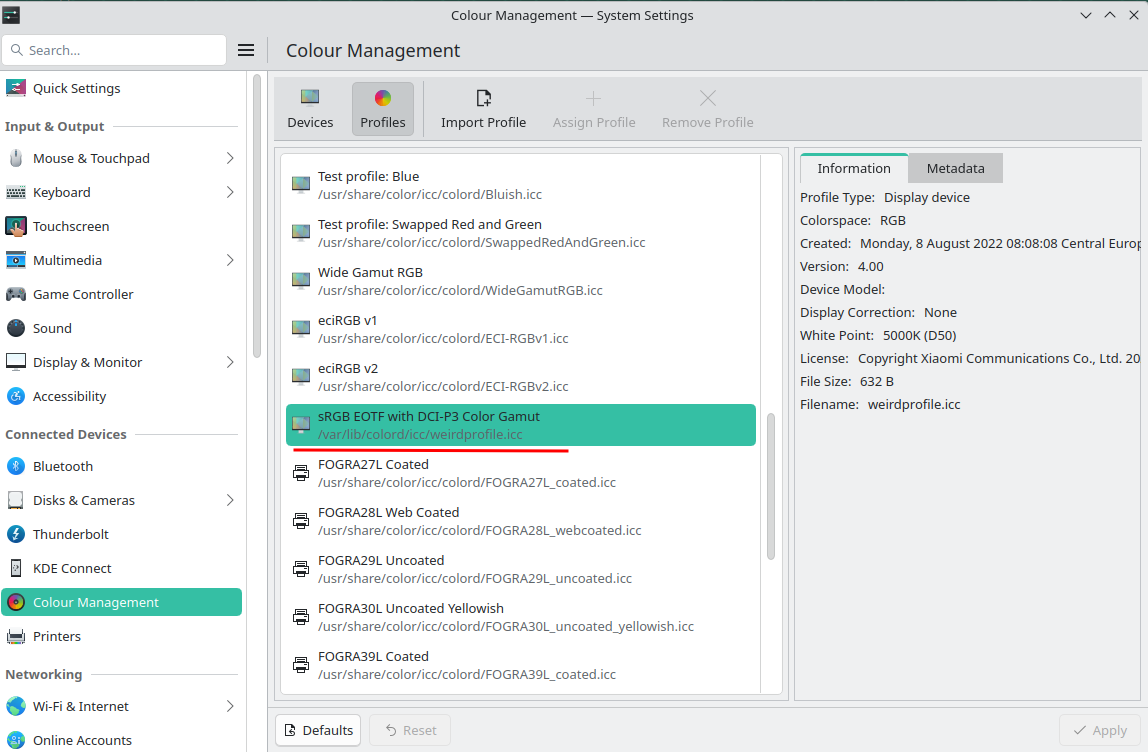
sRGB EOTF with DCI-P3 Color Gamut
Copyright: Copyright Xiaomi Communications Co., Ltd. 2022
Whether I converted or kept it … I could open it in GIMP.
I then looked around and found if I convert it just about any way it works fine. Dont even have to remove the color profile.
ex:
magick IMG_20241019_195232.heif testheifimg.heif
And testheifimg.heif will open fine.
You could script this too with something like
for f in *.heif; do magick -- "$f" "reworked_"$f""; done
(to be ran in a directory full of these ‘broken’ images)
PS.
You might want to remove things like GPS tagging from your images before sharing. 
I didn’t notice the GPS tagging. It’s ok, my location is not a big secret :D. Anyway, I know these are workarounds to open the .heif image, but, it’s better to have an out of the box solution like in TuxedoOS. This issue puzzles me a lot. :))
From a quick search I learned that this OS is based on Ubuntu - but not the most recent version.
It’s apparently based on Ubuntu 22.04 LTS (Jammy Jellyfish) - which was released in 2021
What are the differences between TUXEDO OS and Ubuntu/Kubuntu? - TUXEDO Computers
If that is true, then the versions of software it uses may be significantly older than what a rolling distro like Arch/Manjaro uses.
… newer/more recent doesn’t always translate to better
1 Like
It seems that Manjaro’s version of Gwenview doesn’t support the nonstandard color space used by your HEIF images. I can open other HEIF images in Gwenview just fine but not the one you linked.
This is what I suggested earlier. Proprietary format. Ypu’ll need to add the colour profile (via System Settings → Display and Monitor I believe), but trying to find a source for the appropriate one is proving a bit of a headache.
Edit: see next post by @cscs
OP claims same version of Gwenview on both OSs …
You can get the profile from
magick IMG_20241019_195232.heif weirdprofile.icc
1 Like
TuxedoOS will soon change its base to Ubuntu 24, but, now, the KDE environment is updated very frequently, that it even compete you Manjaro. I noticed this OS after I looked for a LIVE OS with an updated version of KDE Partition Manager installed by default.
It was just an observation - one that could account for the different behavior.
I don’t care either way - I don’t even use Manjaro or KDE myself (outside of VM’s running the different flavors)
I’m on a not recent Mint, soon to change to Bunsenlabs (Debian 12).
… back to the roots, where I began … 
ps:
just as TuxedoOS, gwenview installed in Debian 12 (a VM running Bunsenlabs)
also does open your file flawlessly.
Software in Debian 12 is more modern than the Ubuntu version TuxedoOS is based on
but not as recent as with Arch/Manjaro.
A little testing/troubleshooting that I just did - hopefully this might help to work out where the issue lies.
I couldn’t open the .heif image provided by the OP in either Gwenview or qimgv-qt6-kde-git (I prefer qimgv as my image browser as it opens images in large directories a lot faster than Gwenview).
So that indicates it is not a Gwenview-specific issue.
libheif & kimageformats were already installed on my system. I installed qt-heif-image-plugin & qt6-heic-image-plugin from the AUR - they made no difference, so I removed them.
I then attempted to open the image (IMG_20241019_195232.heif) in Krita and it loaded successfully. I then saved that image via Krita as IMG_20241019_195232-new.heif. Krita’s save dialogue advised that some info would be lost:
You will lose information when saving this image as a HEIC/HEIF Image. Reason:
- The image contains Exif metadata. The metadata will not be saved.
The Krita save settings were lossless & Chroma 444 - I didn’t change any of the settings that Krita defaulted to when I saved the “new” image. The new file was 3MB larger than the original:
1.1M Oct 21 10:52 IMG_20241019_195232.heif
4.1M Oct 21 11:31 IMG_20241019_195232-new.heif
I was then able to successfully open the new image of yachts in a marina in both Gwenview & qimgv. I also downloaded a sample .heif file from the web & had no issues opening that file either.
So the issue must be something to do with the original image - either the encoding/compression used (.heif/.heic uses HEVC) or, as others have suggested in this topic, the color profile (although Krita had no issues with that).
1 Like
Chiming in to mention … its not the EXIF data or … any of the tags.
I ran exiftool -all= on it and still no good.
1 Like
I tried OP’s image in Krita too. It opened, but then Krita segfaulted when I closed it. Opening any other image file did not segfault Krita upon closing it.
Indeed:
This is also the case when “exporting” via GIMP. Most of the EXIF data is missing.
I noticed that too with the file created using GIMP. What I did set was “near-lossless” (whatever it was) rather than the default. May have caused that file size increase. I’ll try again with defaults.
It has to be this (or these) specific images. How was it created?
No matter how its processed it ends up readable after.
imagemagick, gimp, 100% with no changes …
I tried checking tags and differences of verbose identify … and could not land on a definitive reason. It wasnt the profile. It wasnt the EXIF tags. It wasnt the units or resolution. 

2 Likes