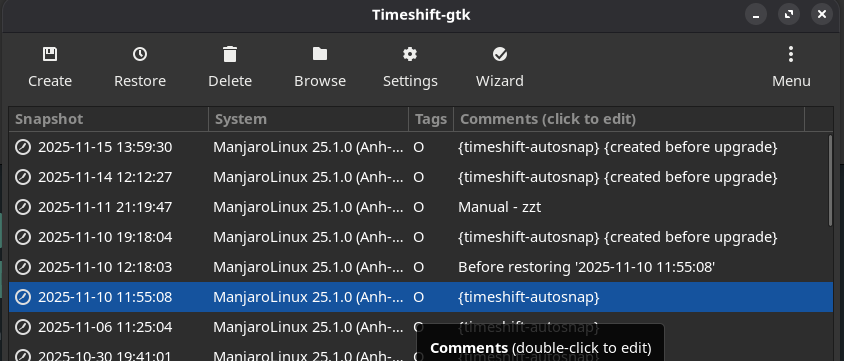
I need your help again to understand something. Are Timeshift snapshots only write-protected as long as they are not restored? And if I restore a snapshot, does it change in all the ways that I make changes to the system? How long is this snapshot writable? Even after rebooting?
That would mean that a restored snapshot becomes virtually worthless as soon as I change something on the system, which is very often the case? I need to understand that first, but once I do, I think I will have understood something essential.
Timeshift chose to use read/write snapshots so you can boot in to them. This is a feature.
You do modify the snapshot you boot into. But Timeshift automatically makes a snapshot right before you restore, so you have a backup anyway. So it’s a little moot for most people whether they are RW or RO.
Snapshots in the past, especially for rollback or backup, should be read only.
So there is basically only two things you can do to mess with a read write snapshot. As mentioned, boot into that snapshot from the grub menu. The only other way is if you mount that specific subvolume.
e.g.:
sudo mount /dev/sdX -o subvol=timeshift-btrfs/snapshots/2025-11-17_11-55-08/@ /mnt
Then write to it after mounted.
If that still bothers you, you can choose to set any one of your Timeshift’s snapshots to read only on your own. (You just won’t be able to boot it.)
Very interesting for me. So, fact: the restored snapshot changes over time. Okay. And now I also understand why Timeshift always creates a snapshot immediately when I perform a restore. But this snapshot is surely from now and does not correspond to the selected snapshot? And: I basically had no problems with Timeshift. I have no reason at all to make a snapshot read-only.
I’ve decided not to switch to Snapper at this point, as it would be too much for me. Timeshift is challenging enough for me.
I’m perfectly happy with how Timeshift works, and I’m happy to abide by its rules. Understanding timeshift and how to use it properly is a big win for me. It helps me a lot.
If you restore, it’s almost like pointing your / directory somewhere else, and it just works (instantly).
But when you boot into snapshots, this creates a lot of useless bloat. Personally, I only use for emergencies, and I delete that snapshot I booted into after.
You do not want to boot into snapshots regularly (unless you know what you’re doing).
Ah, one more important thing: booting into a snapshot, I assume from GRUB, before booting Manjaro. Then I understand that the snapshot will be changed when I boot it.
Is this also the case when I perform a restore from Timeshift? Does the snapshot I have selected also change over time, or does it remain stable and unchanged?
So there is a big difference between restoring a snapshot from booot/GRUB and restoring it from a normally running system via Timeshift.
When I restore with Timeshift, is it important to boot a second time right away? Timeshift only performs the restore after booting. And this restore does not change the snapshot?
And all the concerns that restoring the snapshot will change it only apply to restoring from GRUB?
It’s exactly the same. (They fixed that.) That is what my post from a year ago said they fixed.
There’s really only one difference if you want to get technical, it’s a small detail that doesn’t really matter to most. It would make a new snapshot of the snapshot you’ve booted into, pre-restore (as it does with your normal root booting normally). In Timeshift, it would be called: Before restoring 'YYYY-MM-DD HH:MM:SS', which you can delete.
We apologise for not having noticed this earlier.
Please feel free to open a new Support topic where your issue can be addressed, hopefully without interference.